Authentication Troubleshooting
Clearing saved sign-in sessions
If the sign-in page seems to skip steps or remember a previous choice you want to change, clear your saved sessions:
- Visit your CILogon session management page
- Click the "Delete All" button
- Try signing in again
Determining your authentication email
If your work email isn't being accepted during activation, you can determine the exact email address your organization provides for sign-in.
For most people, this is simply your work email. You only need this procedure if you're having trouble.
-
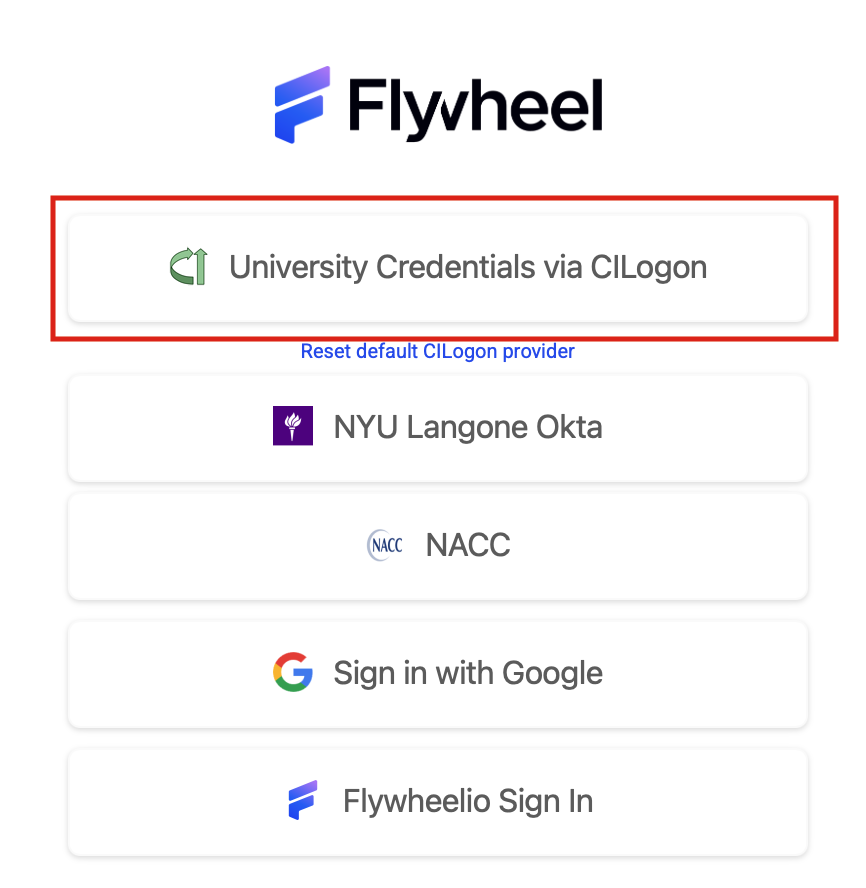
Open the authentication test page and click "University Credentials via CILogon"
-
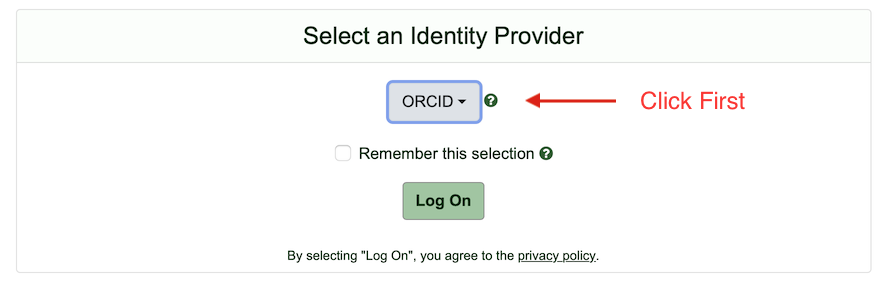
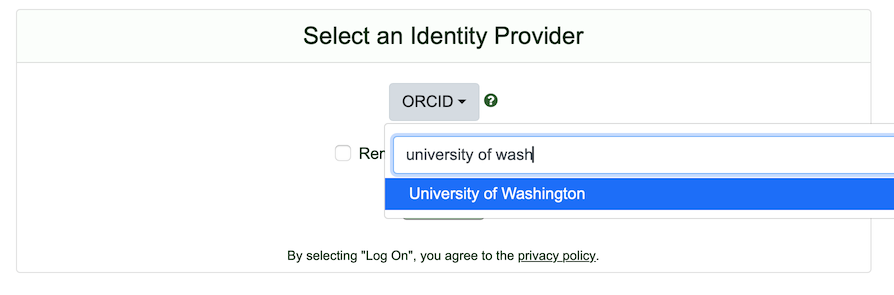
You'll see the identity provider selection page. Select your institution (see Selecting Your Identity Provider for help with this step).
-
Click Log On and sign in with your usual credentials.
-
After signing in, you'll see a page with technical details. Look for the entry labeled
https://flywheel.io/email— this is the email address to provide to NACC.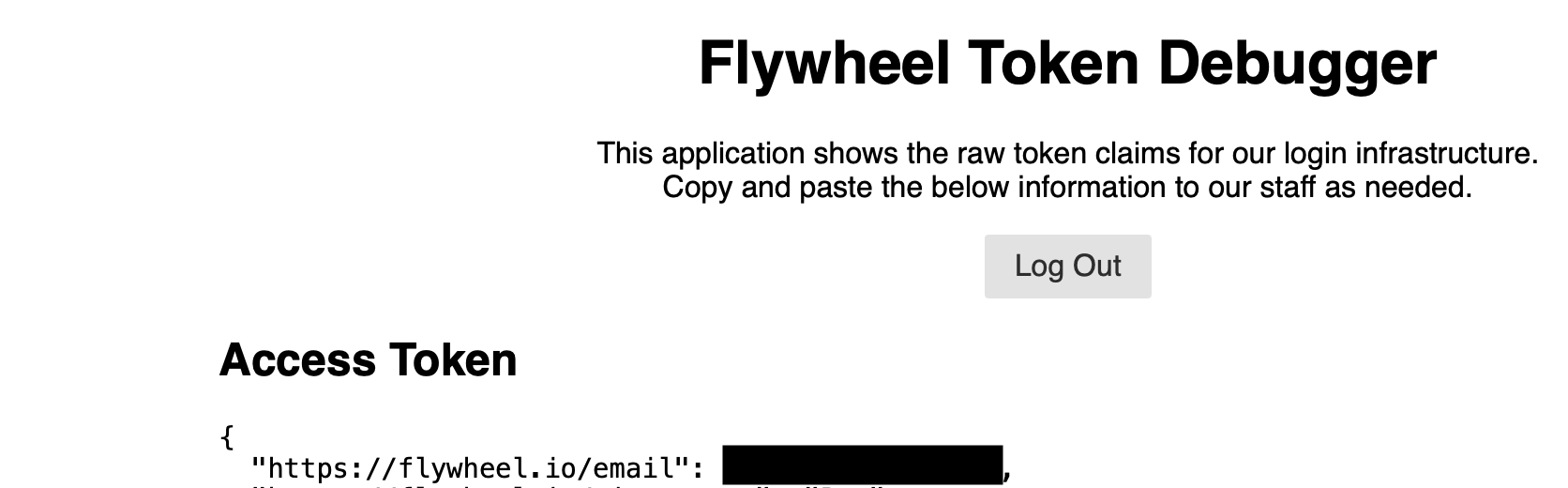
If the email shown is different from what you provided in the NACC Directory, visit NACC Support and let them know — they can update it for you.
Common error scenarios
"Error" after clicking the activation link
This means the system couldn't match your sign-in to the email on file. See What do I do if I got an error?
Signed in with the wrong option
If you accidentally selected ORCID when you should have selected your institution (or vice versa):
- Clear your saved sessions
- Click the activation link from your email again
- Select the correct option this time
ORCiD-specific issues
See the ORCiD Troubleshooting section for issues specific to ORCiD sign-in.
Still need help?
Visit NACC Support for assistance.