Using ORCiD for Authentication
Do I need to use ORCiD?
Most users should not use ORCiD. You only need ORCiD if your email is on the list below. Everyone else should sign in with their university or organization's login — see Selecting Your Identity Provider.
Emails that must use ORCiD
If your work email ends with one of these, you must use ORCiD:
| Domain |
|---|
| advocatehealth.org |
| bannerhealth.com |
| butler.org |
| ccf.org |
| hmri.org |
| mountsinai.org |
| mrn.org |
| msmc.com |
| nm.org |
| uhhospitals.org |
| va.gov |
| vumc.org |
| wakehealth.edu |
| wfusm.edu |
If your email is not listed here, do not use ORCiD. Use your institutional login instead. If your email doesn't match exactly, check the email domain lookup.
If your organization isn't recognized by the sign-in system and you think you may need to use ORCiD, contact NACC Support before proceeding. Do not use a personal email address without confirming with support first.
Setting up ORCiD for NACC authentication
Before you can sign in with ORCiD, your account needs to be configured correctly. Follow these steps carefully — most authentication problems with ORCiD come from skipping or misconfiguring one of these.
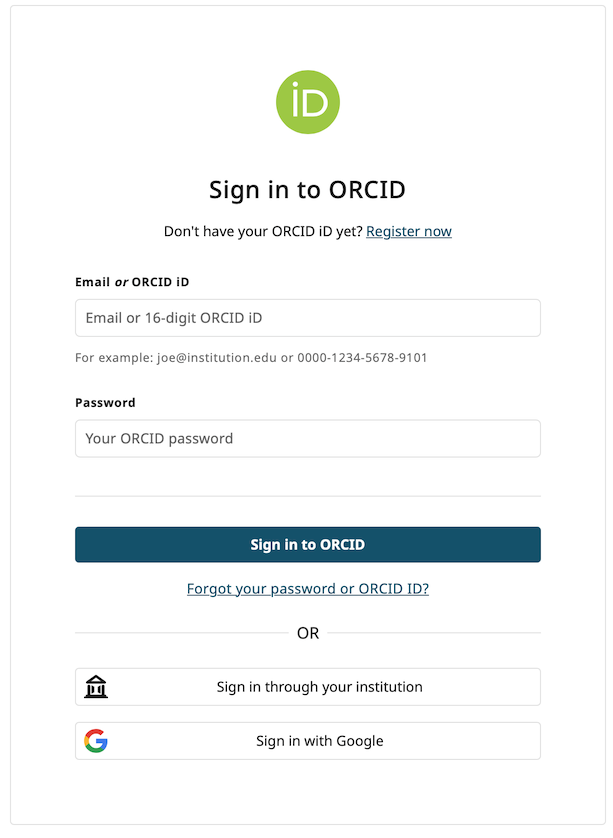
1. Create or sign in to your ORCiD account
If you don't already have one, create an account at orcid.org.

2. Configure your email settings
Your ORCiD account must have the correct email listed and visible for authentication to work.
-
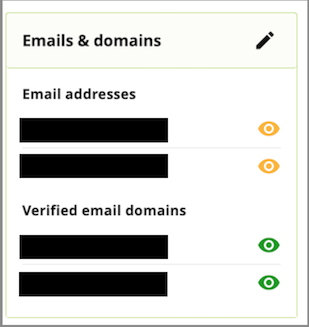
Find the "Emails & domains" panel on the left side of your ORCiD profile page and click the pencil icon to edit.
-
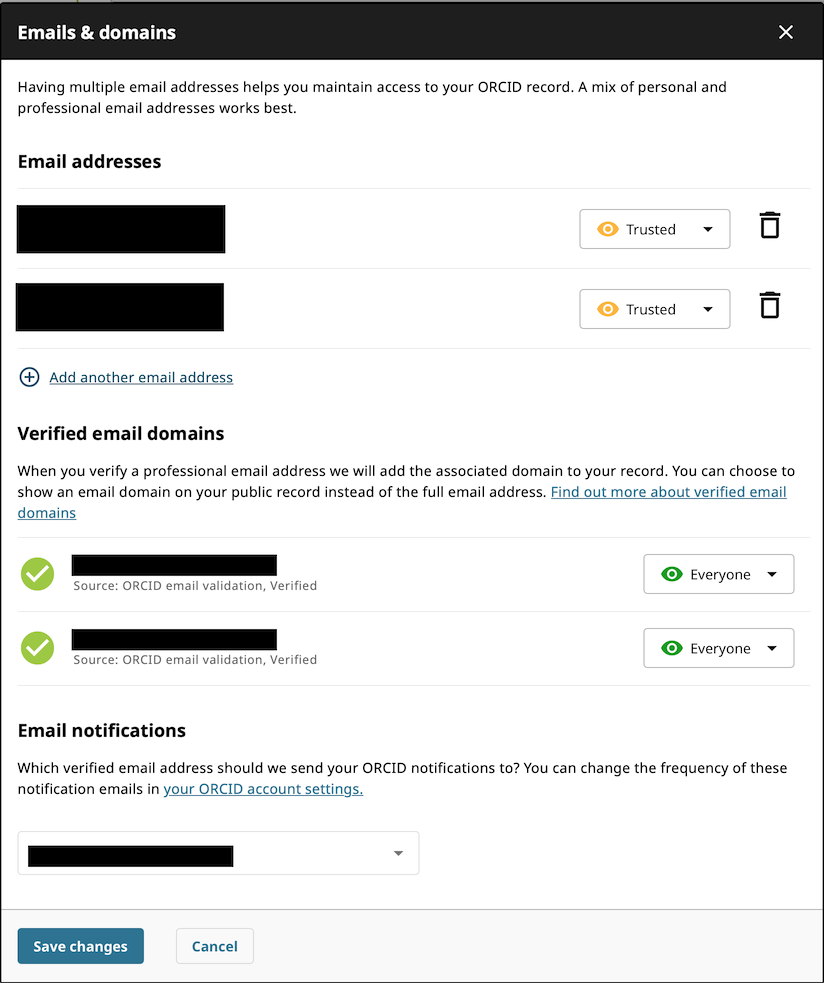
Make sure the email address you provided to NACC is listed first in your ORCiD account. It must match exactly — including capitalization (e.g.,
Jane.Smith@example.comandjane.smith@example.comare treated as different). -
Set the email visibility to at least "Trusted" and domain visibility to "Everyone". This allows the NACC sign-in system to verify your identity. It does not make your email publicly visible.
3. Enable two-factor authentication
This is strongly recommended for account security:
-
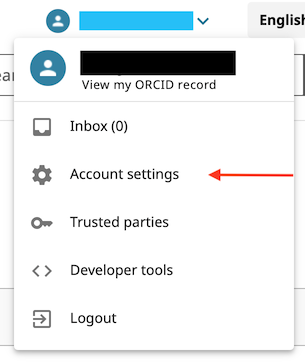
Click the user menu next to your name at the top of the page
-
Under "Security", open two-factor authentication and set it to ON
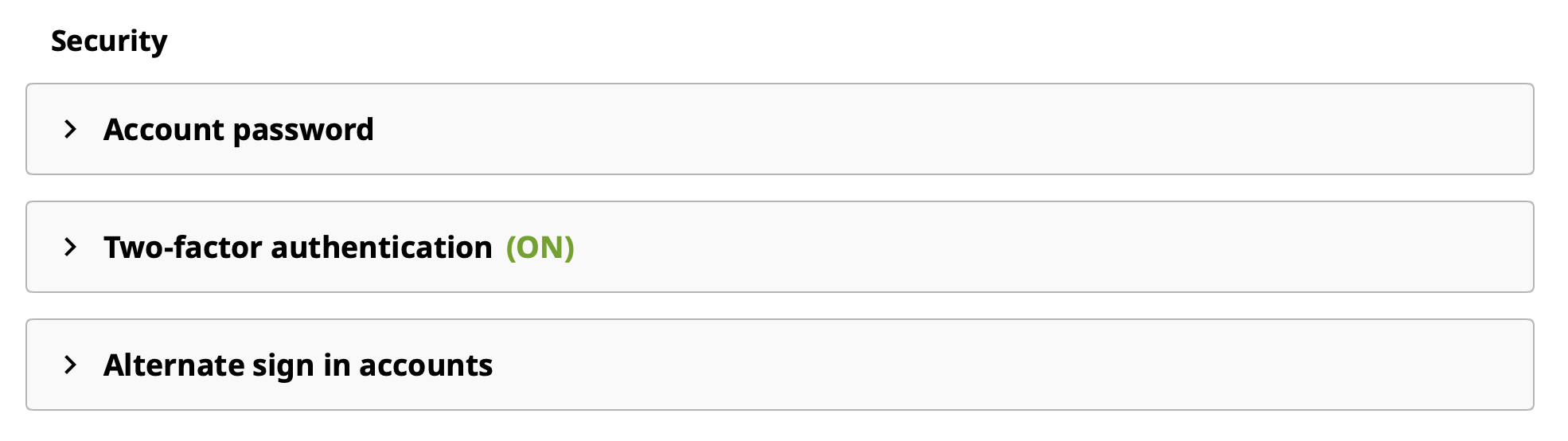
Authorizing CILogon access
The first time you sign in via ORCiD (either during account activation or a regular login), ORCiD will show a permissions dialog asking if you want to allow "CILogon" to access your ORCID iD.
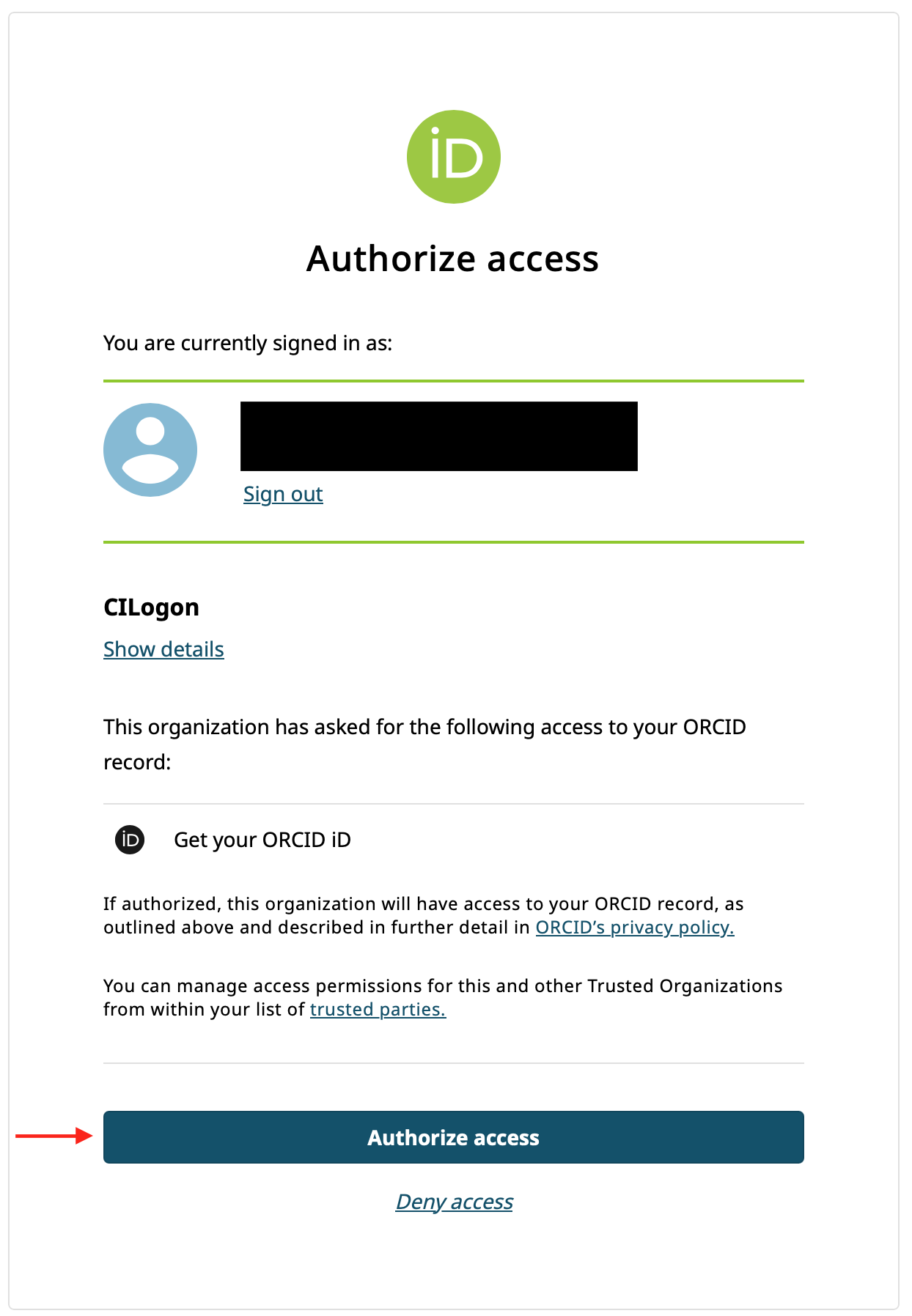
Click Authorize access. This allows the NACC sign-in system to verify who you are. If you deny access, sign-in will fail.
You only need to do this once. You can revoke it later if needed (see Checking your trusted parties below).
Troubleshooting
If you're having problems signing in with ORCiD, check these common issues:
- Email doesn't match: The email in your ORCiD account must exactly match what you provided to NACC — including capitalization.
- Email not visible: Your email visibility must be set to at least "Trusted" and domain visibility to "Everyone."
- Email not first: The NACC email must be listed first in your ORCiD account.
- Authorization not granted: You may have denied or not completed the CILogon authorization step (see below).
- Stale login session: Visit your CILogon session management page and click "Delete All" to clear saved sessions, then try again.
Checking your trusted parties
To verify that CILogon has been granted access to your ORCiD account:
-
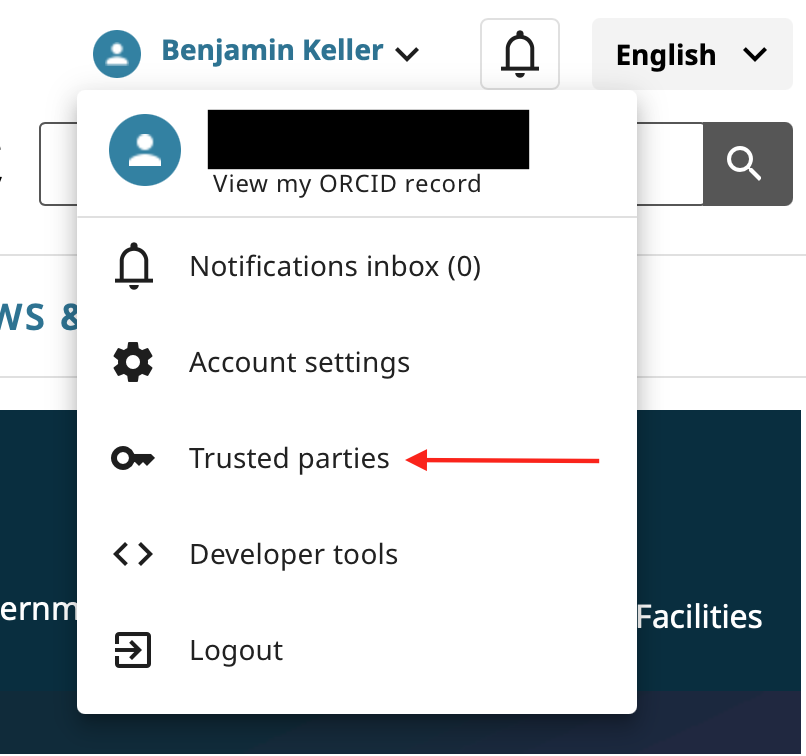
Click your profile link at the top of the ORCiD page. In the menu that appears, select Trusted parties.
-
CILogon should appear in the list with access to your ORCID iD:
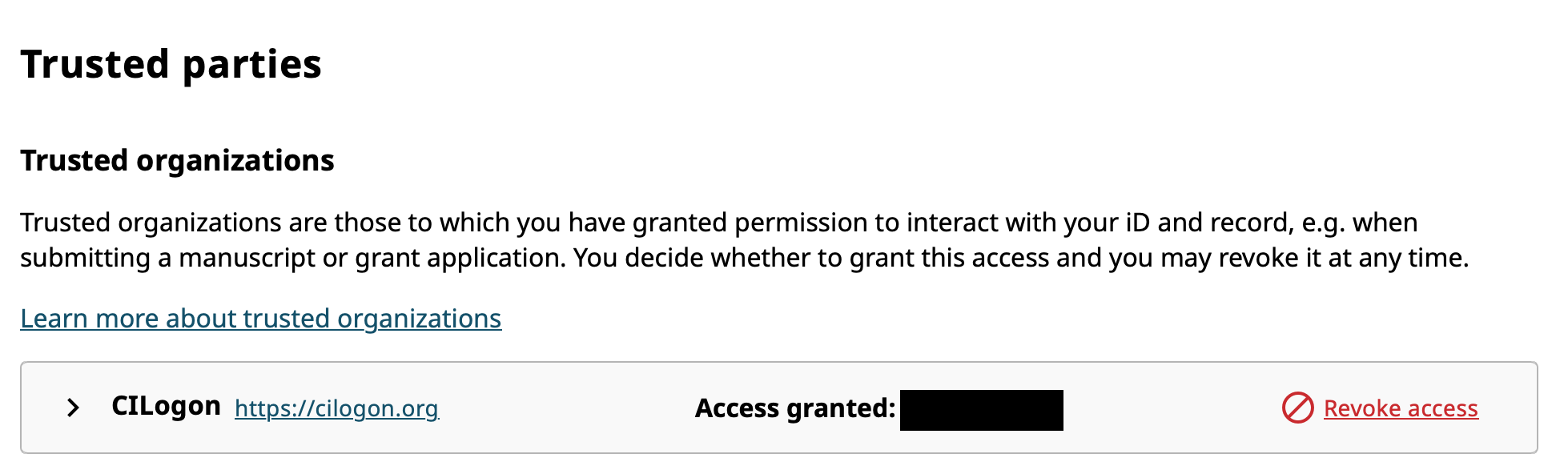
If CILogon is not listed, you'll need to go through the authorization step again. Clear your sessions at your CILogon session management page first, then retry the sign-in process.
If you're still having issues, visit NACC Support for assistance.