Selecting Your Identity Provider
When you activate your account or sign in to the NACC Data Platform, you'll see a page asking you to select your "identity provider." This is just the system your organization uses for sign-in — the same login you use for your work email, HR systems, or other institutional tools.
Which option should I select?
Most users: Change the dropdown from ORCID to your university or organization, then click Log On.
Users with emails on the ORCiD list: Select ORCID. See ORCiD Authentication for required setup steps.
If you're not sure which to pick, check whether your email appears on the ORCiD list. If it's not there, select your institution.
Even though "Department of Veterans Affairs" appears in the identity provider list, it does not work with CILogon. If your email ends in va.gov, you must use ORCiD instead. See ORCiD Authentication for setup instructions.
Step-by-step: Selecting your institution
-
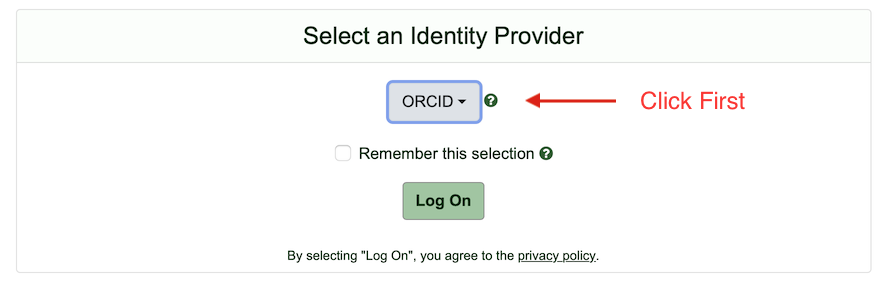
When the page loads, the dropdown defaults to "ORCID." Do not click Log On — this is the most common mistake users make. You need to change this to your institution first.
-
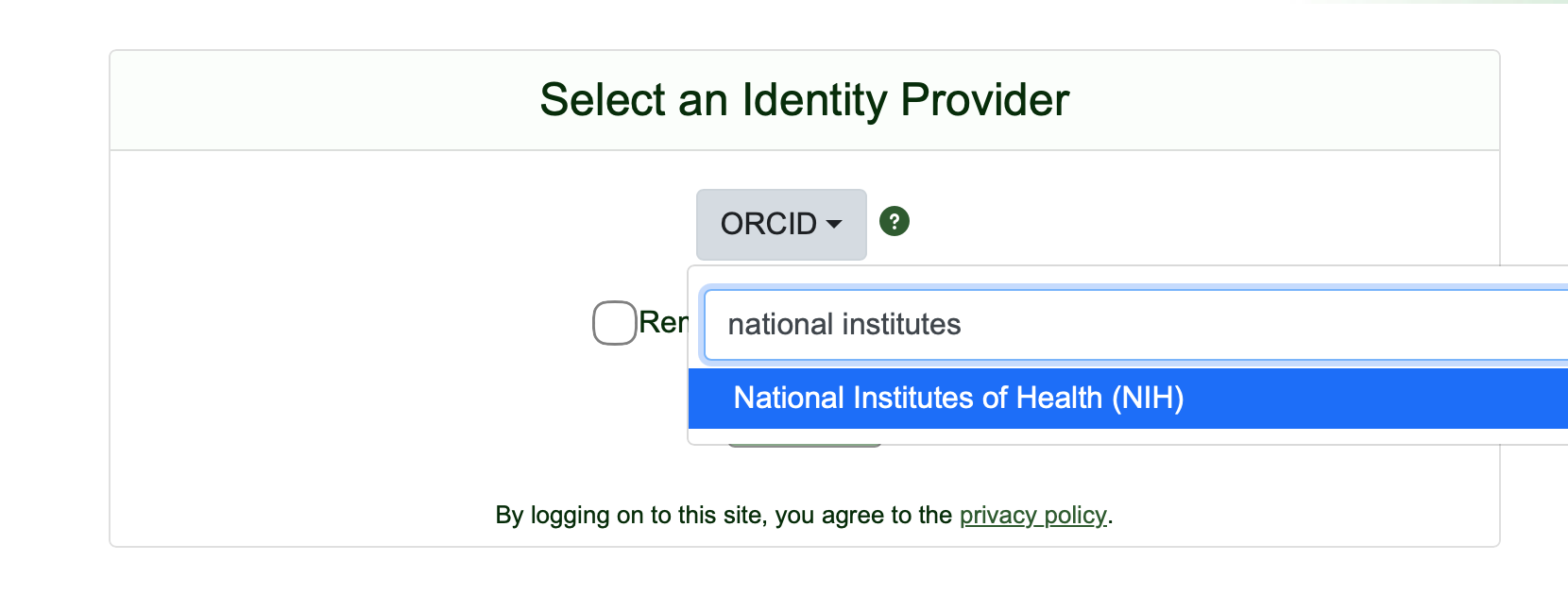
Click the dropdown and search for your institution. You can search by name:
Or by your email domain (e.g., type
wisc.edu), which is often easier: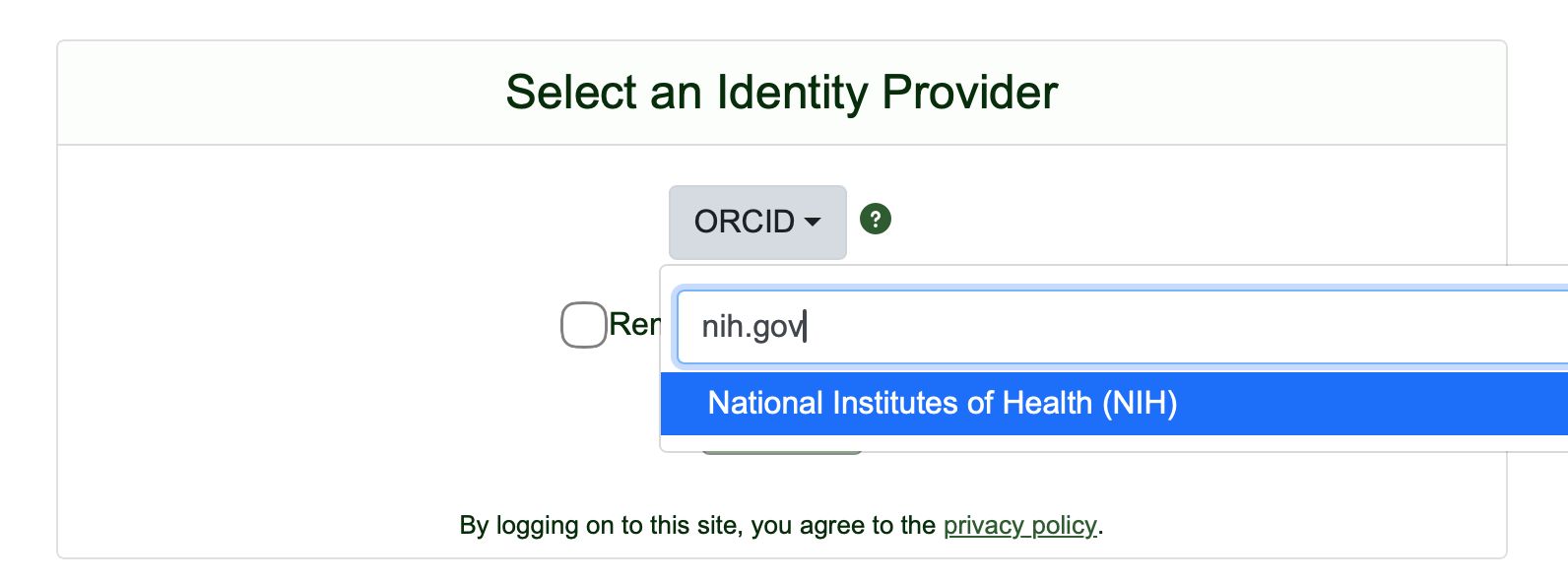 note
noteSearching by domain won't always find a match. Some email addresses use a domain that differs from the institution's entry (e.g., your email might be
@medicine.wisc.edubut the list showswisc.edu). If your domain doesn't return results, try searching by your institution's name, or check the email domain lookup. -
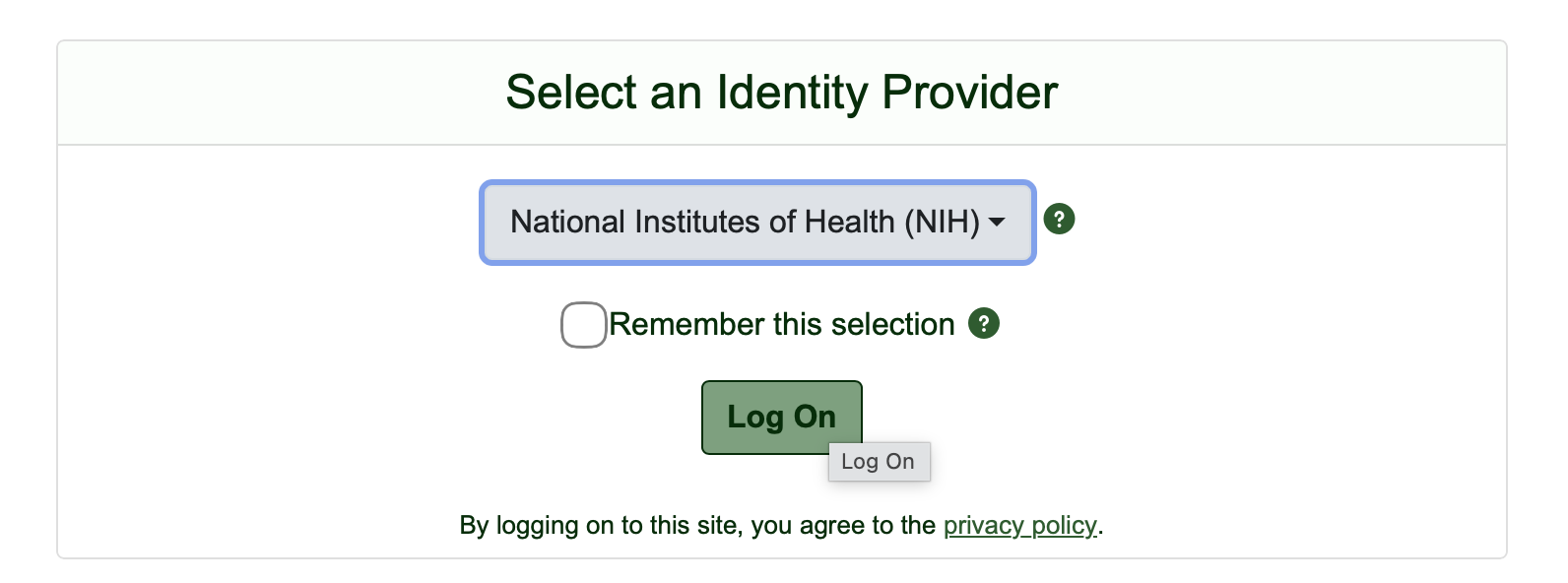
Once you've selected the correct entry, the dropdown will show your institution's name (not "ORCID"). Now you can click Log On.
 warning
Before clicking Log On, verify the dropdown shows your institution's name. If it still shows "ORCID" and you're not on the ORCiD list, you'll get an error.
-
You'll be taken to your institution's familiar sign-in page. Enter your credentials as you normally would.
What happens next
After signing in successfully, you'll be taken to a confirmation page indicating the activation was successful.
You may also have a tab open to registry.cilogon.org — you can safely log out of that and close the tab.
If you encounter an error instead, see What do I do if I got an error?