NACC Directory User Guides and Tutorials
For ADRC members on the CLARiTI study
1. Affiliations
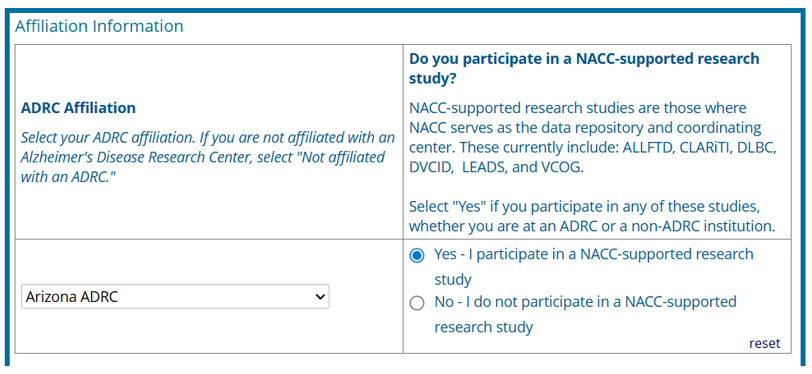
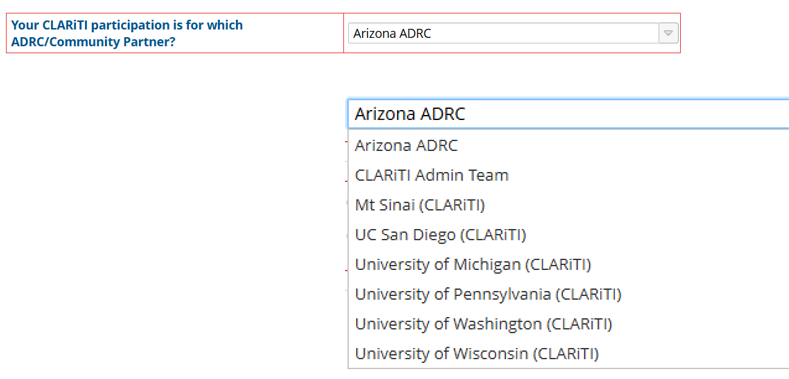
- Fill out your institutional affiliations (for example, select your specific ADRC, “Arizona ADRC”).
- Select "Yes - I participate in a NACC-supported research study."
Your selections in this section will dynamically determine which data permissions and specific fields pop up later in the survey.
2. CLARiTI & NACC-supported research studies
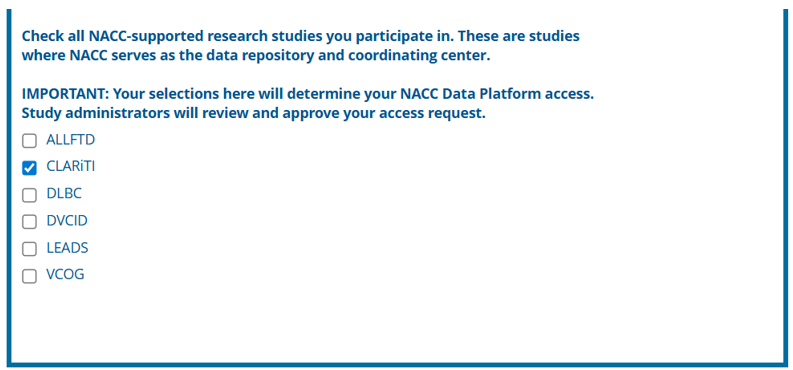
- Select “CLARiTI” or other NACC-supported research studies in which you participate (i.e., studies where NACC serves as the data repository and coordinating center).
Your selections here determine your access permissions within the NACC Data Platform. All access requests will be reviewed and approved by the respective study administrators.
3. CLARiTI
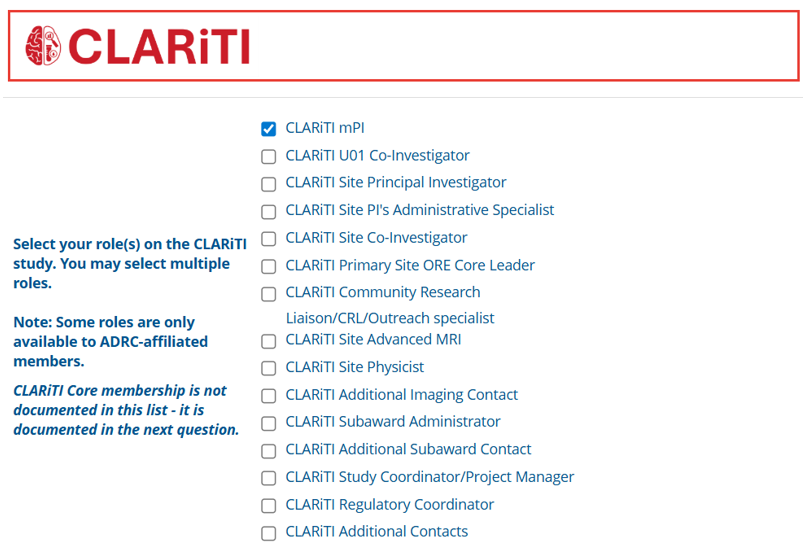
- Indicate your role(s) on the CLARiTI study.
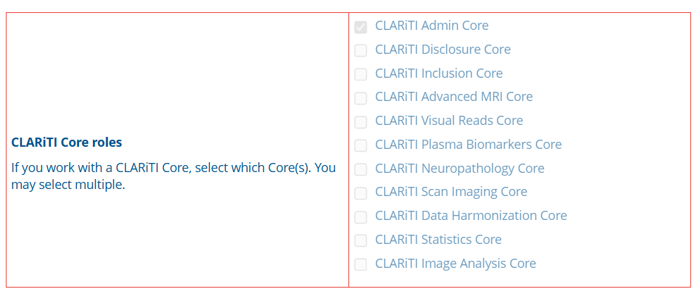
- NACC CLARiTI staff will select the core role(s) on behalf of the member.
This information is displayed for transparency purposes, but the field is read-only for members.
- Indicate the ADRC or Community Partner associated with your CLARiTI participation.
- Indicate whether you would like to receive communications about the CLARiTI Initiative.

4. Research Affiliations
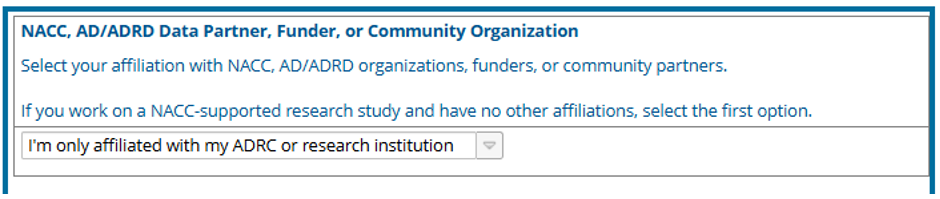
- Select your affiliation with NACC, AD/ADRD organizations, funders, or community partners (for example, “I’m only affiliated with my ADRC or research institution”).
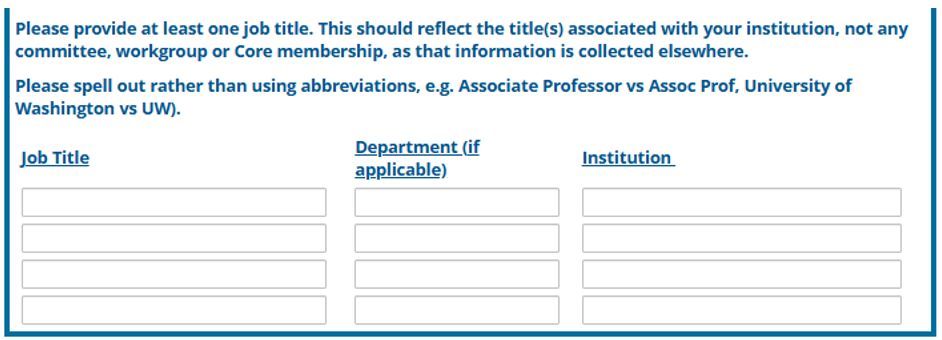
5. Provide at least one job title. Job Title & Department (Action Required)
- Please do not skip this section. Ensure you provide at least one job title and department that reflects your position at your institution (this is separate from your ADRC committee or Core membership). Please spell out titles completely (for example, use "Associate Professor," not "Assoc Prof").
6. ADRC Role
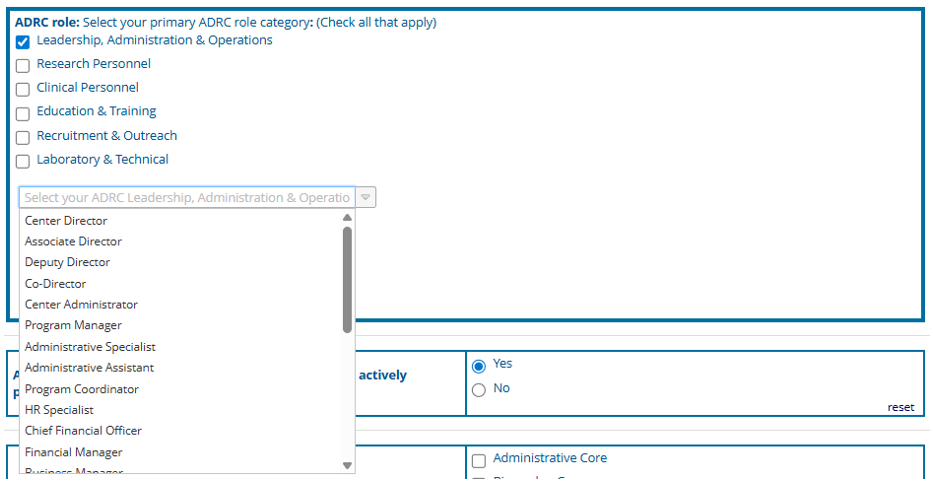
- Select your primary ADRC role category (for example, Leadership, Research Personnel, Clinical Personnel).
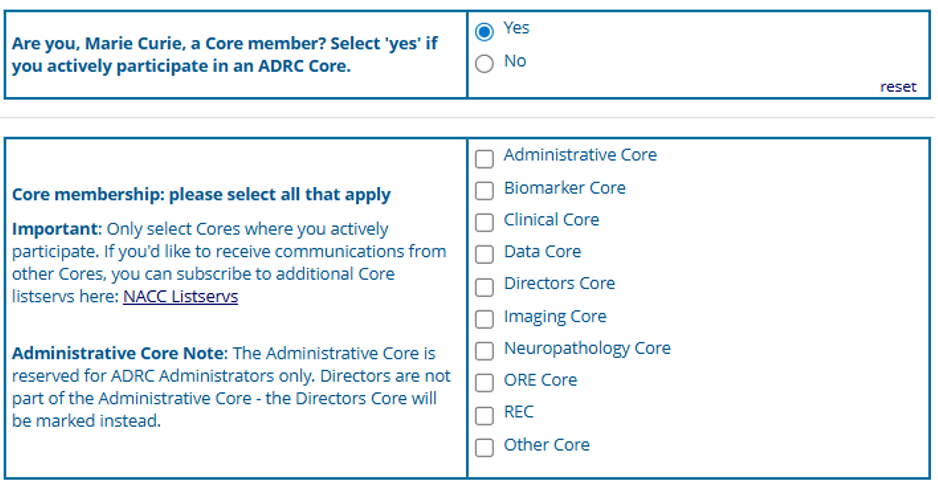
7. Core Membership
- Select your Core membership. Only select Cores where you actively participate.
8. ADRC Program Community Forum (Discourse)
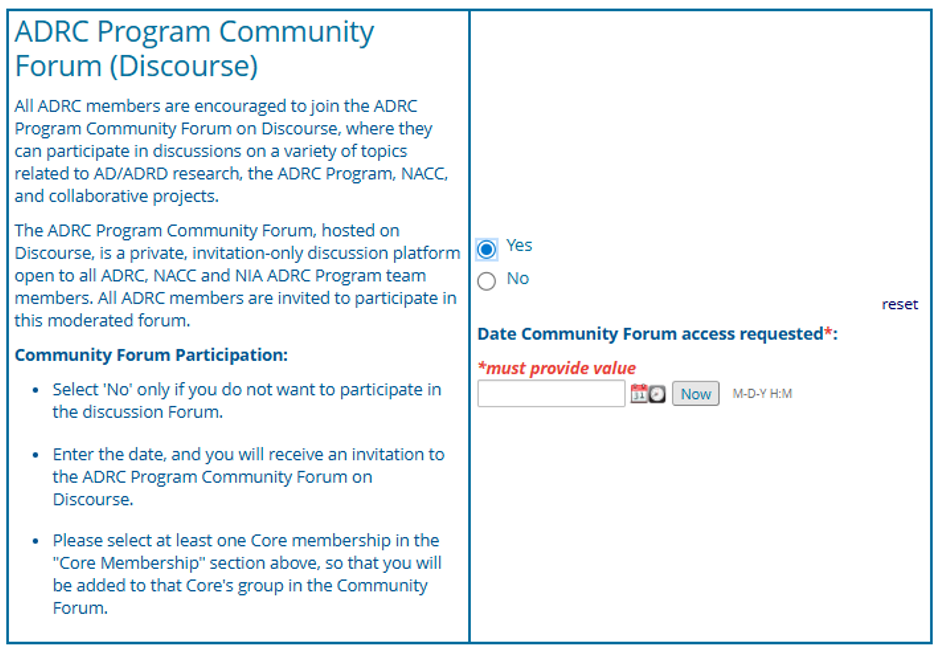
- Indicate whether you would like to join the ADRC Program Community Forum.
We highly encourage all members to select "Yes" to join the ADRC Program Community Forum. This platform is where NACC posts regular updates, where you can ask for help and technical support, and where you can participate in valuable Core-specific discussions with colleagues.
9. Request Data Platform Permissions
-
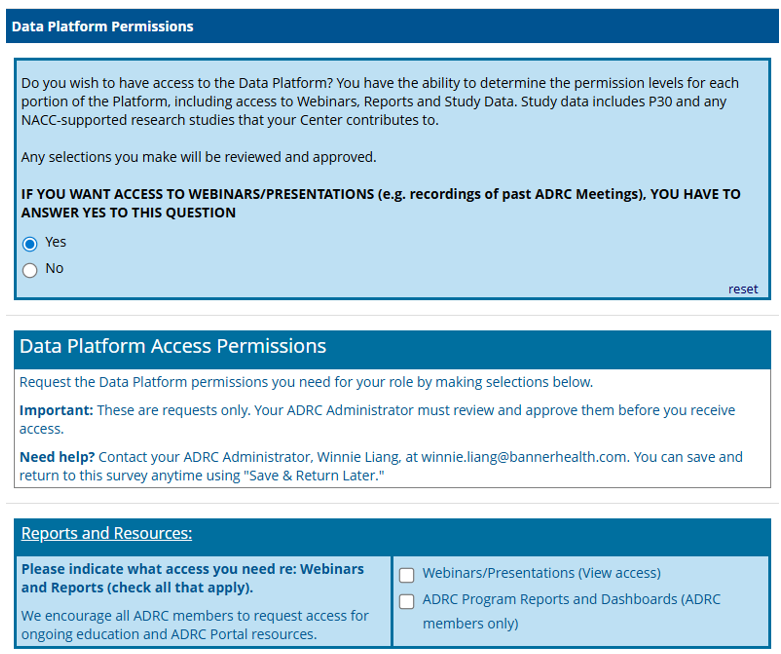
Specify if you need access to the NACC Data Platform (hosted on Flywheel).
-
Approval Process: Your requested permissions will trigger an automated email to your Center Administrator, who must review and approve your request (via electronic signature) before your access is granted.
-
Step 1: Request Data Platform Access Under the question "Do you wish to have access to the Data Platform?", please select Yes. Additional options will then appear. Please indicate the type of access you need by checking all that apply:
- Webinars/Presentations (View access)
- ADRC Program Reports and Dashboards (ADRC members only)
We highly encourage all ADRC members to request this access, as it provides valuable resources for ongoing education and navigating the ADRC Portal.
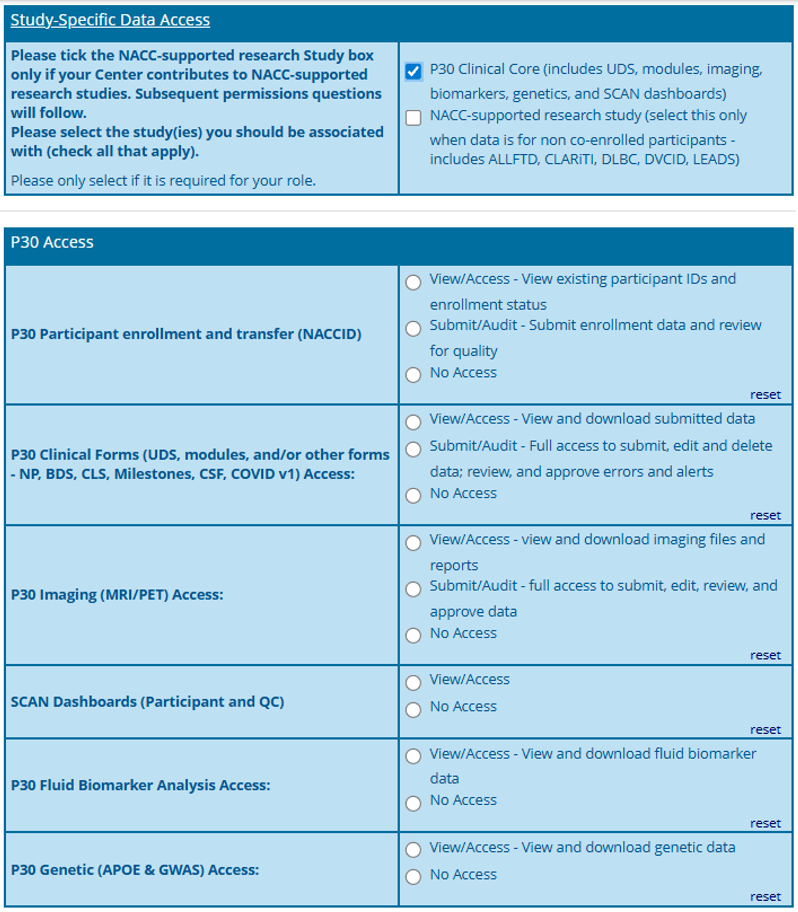
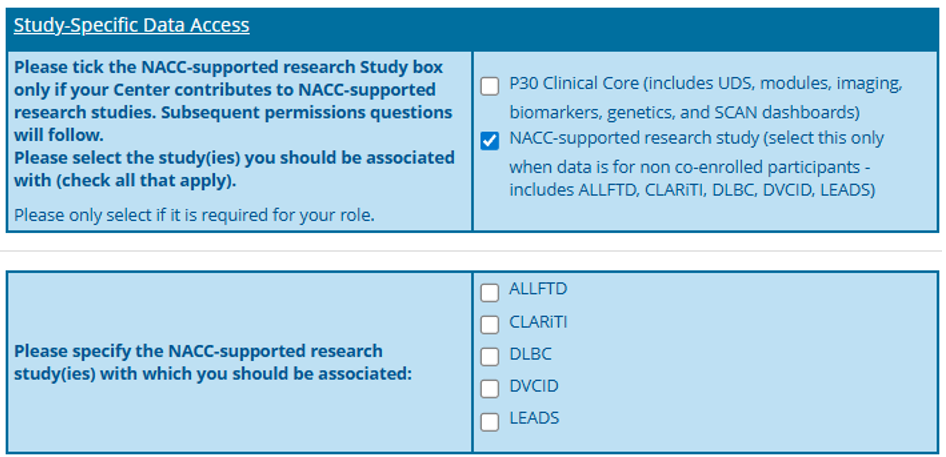
- Step 2: Assign an access level Please check the P30 Clinical Core box only if your Center contributes to the P30 Clinical Core (which includes UDS, modules, imaging, biomarkers, genetics, and SCAN dashboards).
"P30" refers directly to your ADRC grant. Once selected, subsequent permission questions will appear.
Next, please select the specific study or studies you need to be associated with (check all that apply). Please only select the studies that are actively required for your role.
-
Step 3: Check the NACC-supported research study box Please check the NACC-supported research study box only if your Center contributes to a NACC-supported research study. You should only select this option when the data is for non-co-enrolled participants (this includes studies such as ALLFTD, CLARiTI, DLBC, DVCID, and LEADS). Once selected, subsequent permission questions will appear. Next, please select the specific study or studies you need to be associated with (check all that apply). Please only select the studies that are actively required for your role.
-
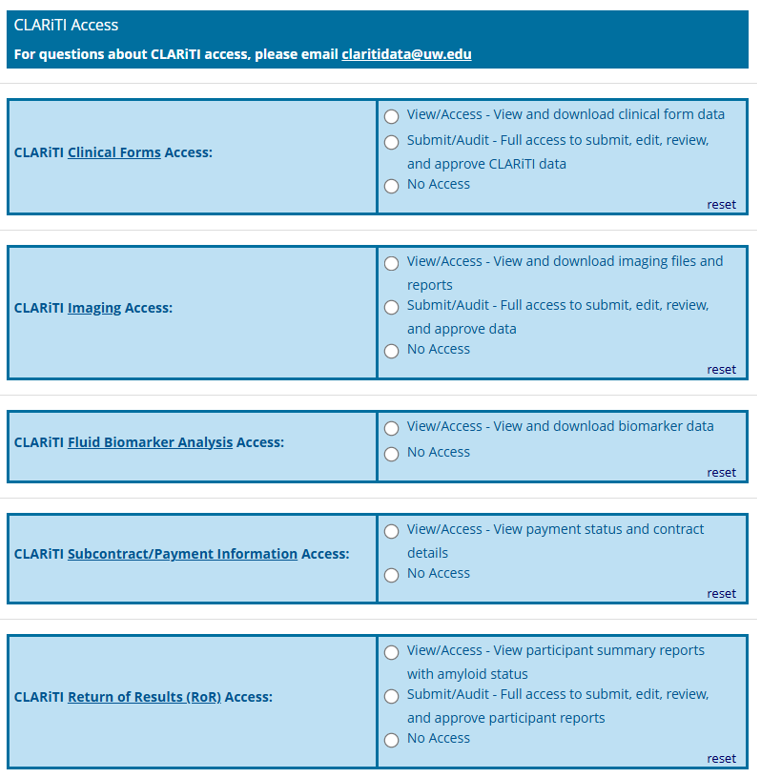
Step 4: Assign an access level The data permission fields displayed in this section are generated dynamically based on your previous selections. For instance, if you selected the "CLARiTI" research study, the corresponding CLARiTI access fields will appear. Please assign an access level for each available study by choosing View/Access, Submit/Audit, or No Access.
10. Authentication Email for NACC Data Platform
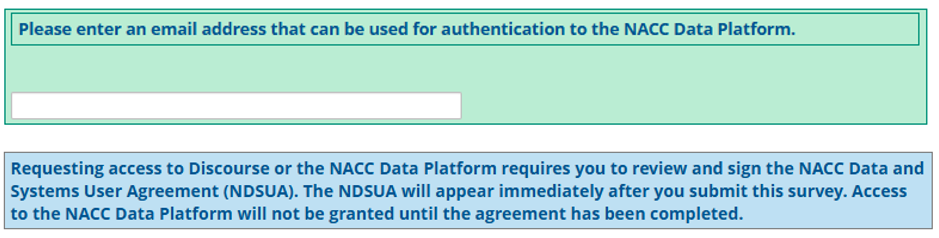
- If you requested Data Platform access, you must provide an authentication email address.
This email is used specifically to "claim your record" and securely authenticate your login to the NACC Data Platform, which sometimes requires an email address distinct from your primary contact email.
11. Proceed to the Final Common Steps below.
Final Common Steps (For All Users)
Once you have completed the specific steps for your role above, complete your profile by providing the following:
1. Mobile Phone (Optional)
- Providing a mobile phone number is optional but helpful, as it allows Center Administrators to contact each other easily outside of the directory framework.

2. Additional Contact Information (Optional)
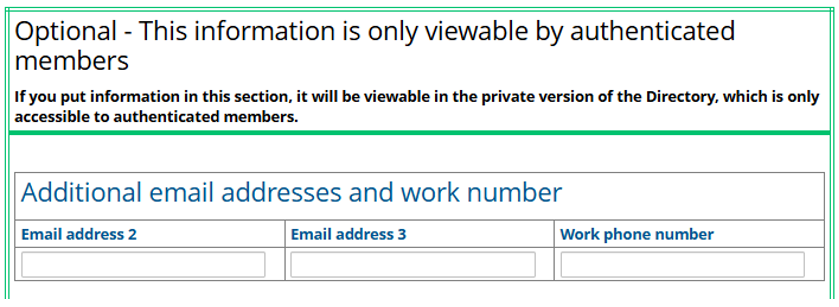
- Providing additional email addresses and work numbers is optional but helpful, as it allows authenticated members to contact each other easily. If you put information in this section, it will be viewable in the private version of the Directory, which is only accessible to authenticated members.
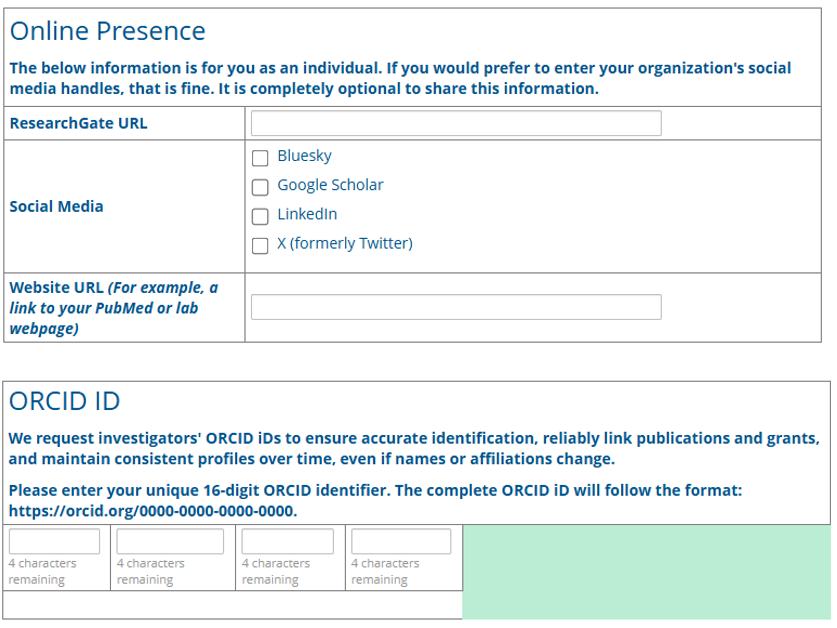
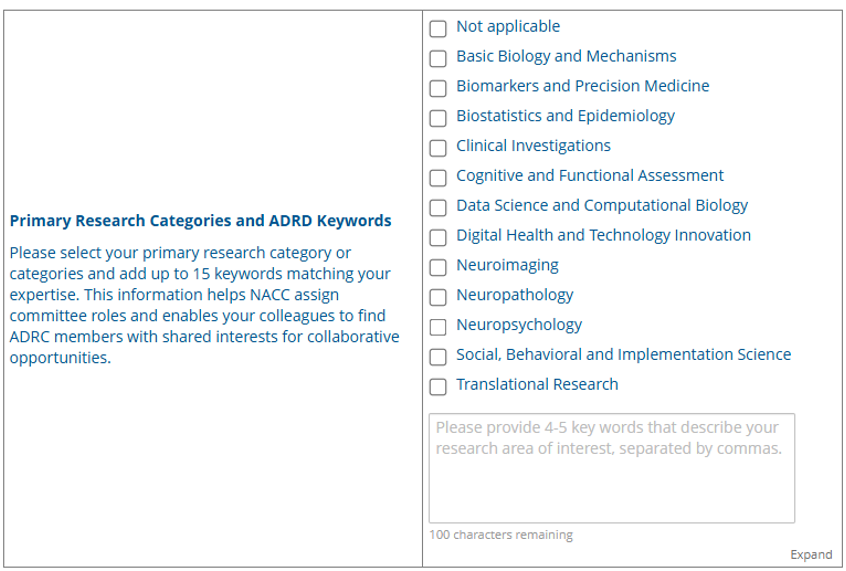
3. Online Presence, ORCID, & Primary Research Categories (Highly Encouraged!)
We strongly encourage you to provide your ORCID iD, ResearchGate URL, and Primary Research Categories (expertise keywords). NACC regularly uses this information to nominate individuals for committees, review panels, and collaborative grant funding programs. Additionally, this data will soon power a searchable directory on the portal, allowing colleagues to easily find and connect with experts sharing similar research interests.
4. Biosketch & Profile Image
- Upload your Biosketch (required if you are presenting at an ADRC meeting).
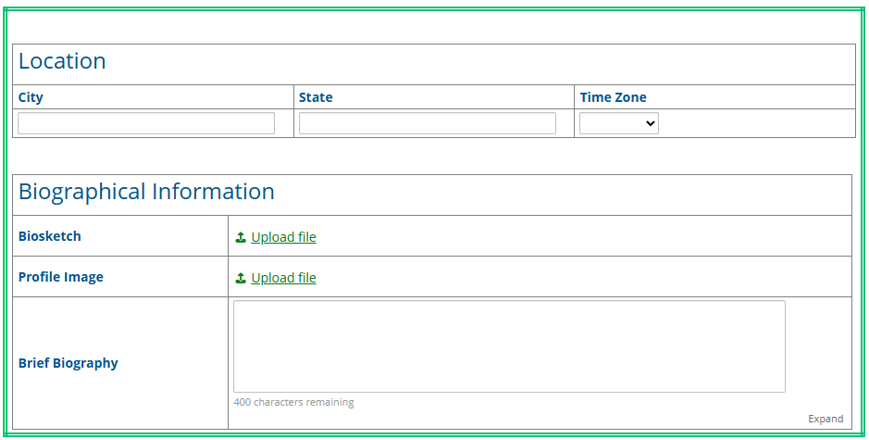
5. REC Scholar Information
- If you are a REC Scholar, your information will be displayed here. If you need to make edits to this information, please contact your Center Administrator.

6. Review and Submit
- Check the box at the bottom to confirm you have reviewed your profile, then click Submit.
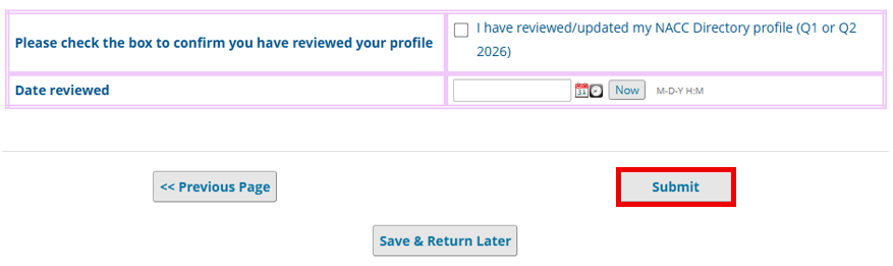
Once you submit your Member Profile Survey, you will be automatically routed to sign the NACC Data and Systems User Agreement if you have not already done so.