Down Syndrome Module Submission (UDSv4)
Introduction
Alzheimer’s Disease Research Centers (ADRCs) can submit Down Syndrome (DS) Module data to NACC via the ADRC Portal. The portal currently supports both UDSv3 and UDSv4 visit data.
- UDSv4 Submissions: Guidelines are outlined in this document.
- UDSv3 Submissions: Please refer to the separate UDSv3 documentation.
UDSv3 and UDSv4 DS modules utilize different entry points and follow distinct submission rules within the portal.
This page describes:
- Where Down Syndrome Module (UDSv4) submission happens in the ADRC Portal
- How to upload DS module data (CSV via Portal)
- How DS module submissions are processed, and how to review QC status and results
- How to view and use the Error Report when a submission fails
Accessing the Portal and the Down Syndrome Module submission entry point
Step-by-step guide
-
Log in to the ADRC Portal.
-
Go to Submit Data.
-
Select the UDSv4 tile (UDSv4 & Associated Modules).
-
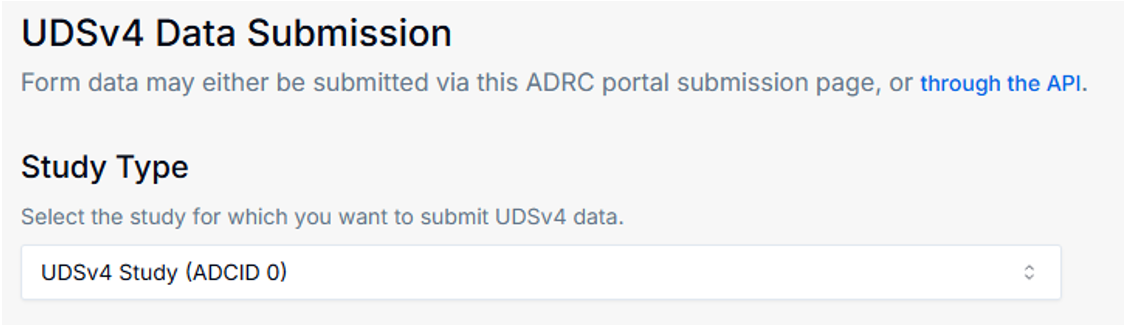
You will be taken to the UDSv4 Data Submission page.
-
After you select the study, the page will show the modules and forms that can be submitted for that study. Down Syndrome - DS appears as one of the available modules, alongside other modules such as LBD and FTLD.
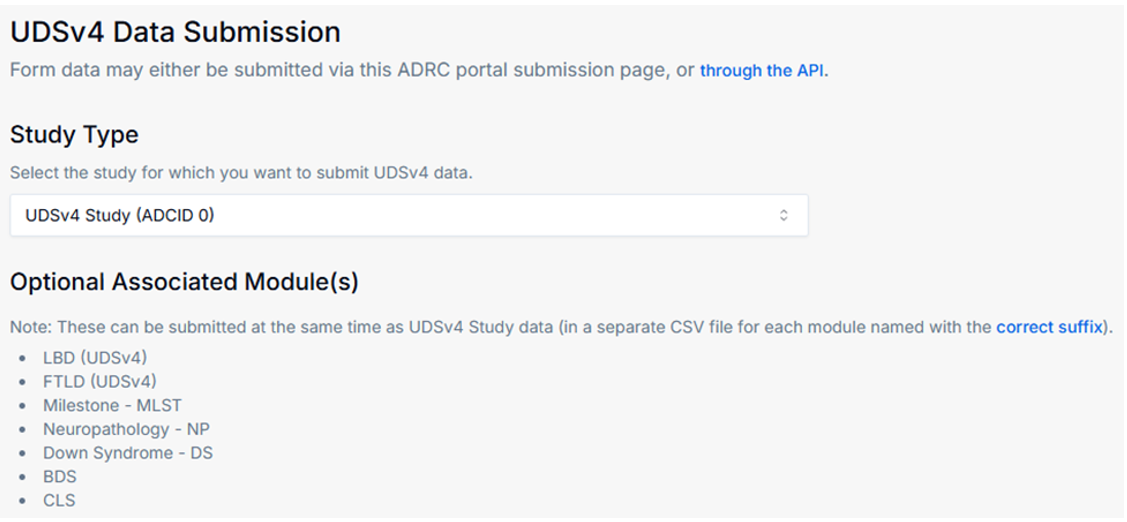
This page is sometimes referred to as the form submission page and is the same page used for submitting other UDSv4 data. See the Form Data Submission documentation.*
Data Submission Options for Down Syndrome
Down Syndrome data can be submitted using the same three methods available for standard UDSv4 data. While these submissions follow the same general patterns described in the EDC documentation, please note that they utilize DS-specific file naming and quality control (QC) behavior.
Choose from the following submission methods:
- Batch File Upload: Submit CSV files via the Portal.
- Direct Data Entry into NACC REDCap: Use the NACC-hosted REDCap system for manual entry.
- Upload Data via API: Use the NACC API to programmatically upload data for one or more participants.
DS Module Submission Method: Batch File Upload (CSV via Portal)
File requirements
- DS module submissions require a specific filename suffix
-ds.csv. - The Portal validates the suffix before allowing upload.
- The CSV column headers should match with the Data Element Dictionary for the DS Module which can be found in the EDC File Downloads Page.
Mapping the DS Module packet to the UDSv4 packet
PTID, VISITNUM, and VISITDATE of the DS Module packet should exactly match those of the respective UDSv4 packet.
Even when the visit is split into multiple days, the same VISITNUM and VISITDATE MUST be used for the header variables in both packets (UDS and DS Module). Guidance is to use the date that UDS Form A1 is filled as the VISITDATE for both packets. Individual form dates (FRMDATE[XX] variables) can be different depending on when they are completed.
Step-by-step guide
-
On the UDSv4 Data Submission page, ensure the desired study is selected and that Down Syndrome – DS appears in the list of available modules.
-
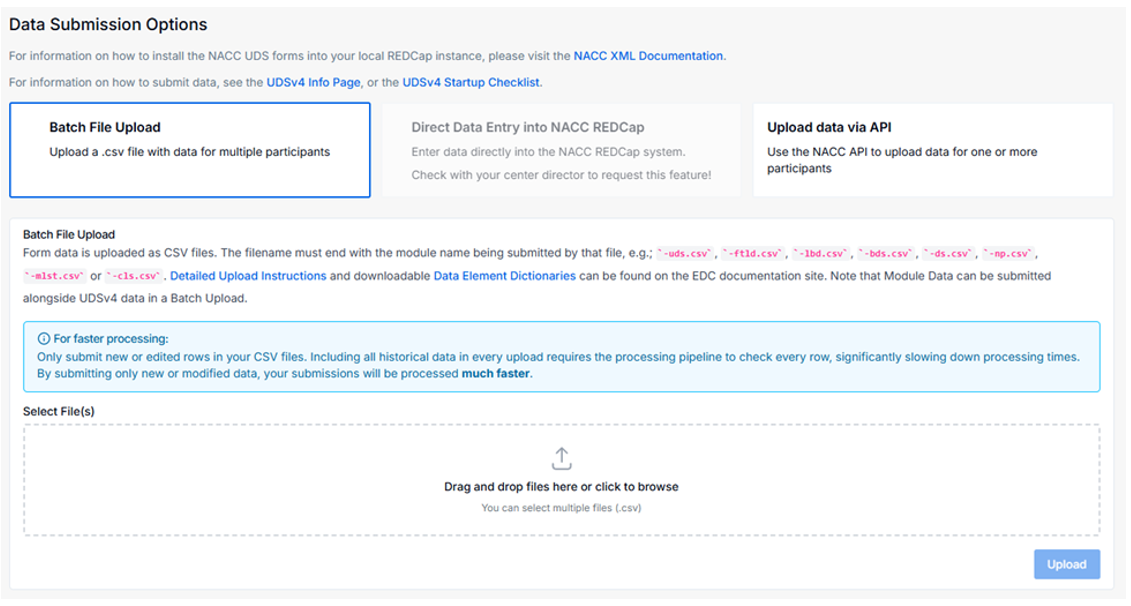
In the Batch File Upload section, drag and drop your CSV file into the upload area, or click Select File(s) to choose your file.
-
If the filename does not end with the required suffix, the portal will block the upload and display a message indicating the file must end with
-ds.csv.
-
Select a file with the correct suffix (ending in
-ds.csv), for example,test-file-ds.csv. Once validated, the interface will show the file as ready for upload.
-
Click Upload to submit the file.

-
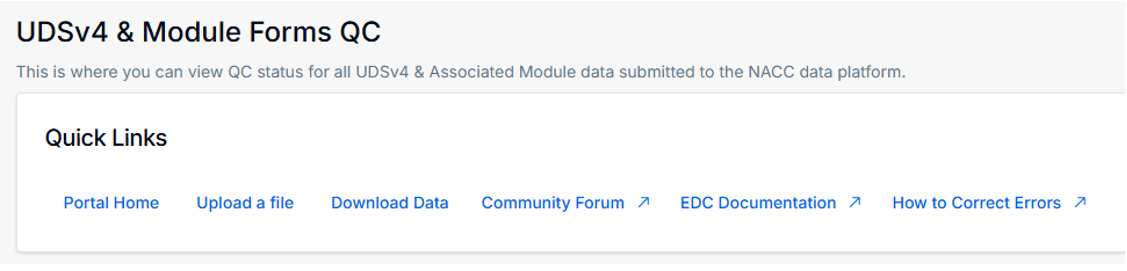
After a few seconds, you will be redirected to the UDSv4 & Module Forms QC page, where you can review QC status.
Viewing QC status (UDSv4 Module QC page)
The UDSv4 & Module Forms QC page is almost identical in layout and functionality to the UDSv3 QC page, but it displays only UDSv4 DS module forms.
Step-by-step guide
-
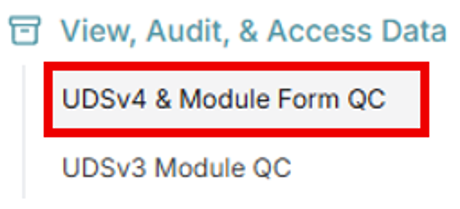
Use the sidebar menu to navigate to View, Audit, & Access Data → UDSv4 & Module Form QC.
-
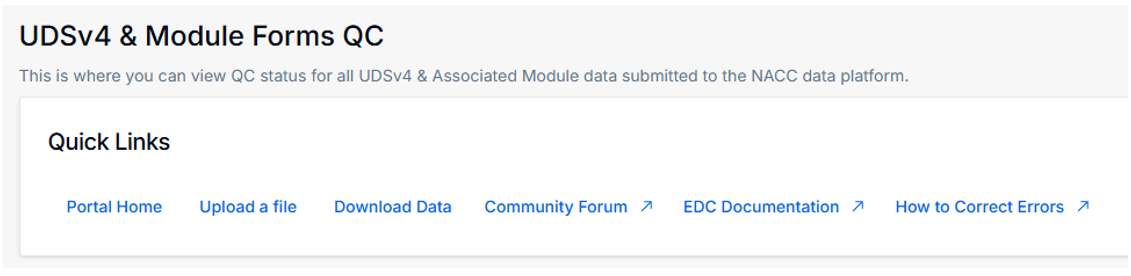
The interface will display the UDSv4 & Module Forms QC page.
-
In the Submissions for UDSv4 and Associated Module Forms panel, you can review the pipeline status for submitted files. For example, click PASS in the Batch Status column.
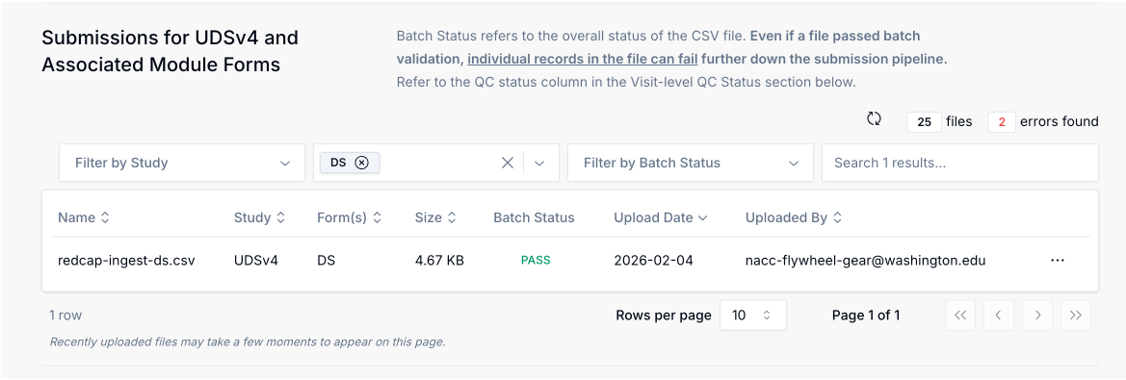
-
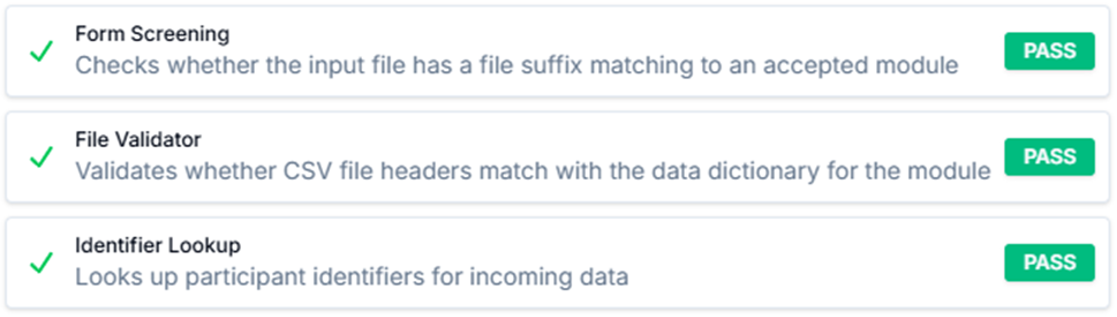
The interface will then display the Batch Status, such as:
- Form Screening: Confirms that the submitted CSV is correctly named with the required DS module suffix.
- File Validator: Verifies that the CSV uses the correct headers and data types, consistent with the NACC-published data dictionary.
- Identifier Lookup: Retrieves participant identifiers for the incoming data.
-
In the Visit-Level QC Status panel, you can review the QC status for each participant (PTID) and each record in the submitted files. For example, click PASS in the QC Status column.
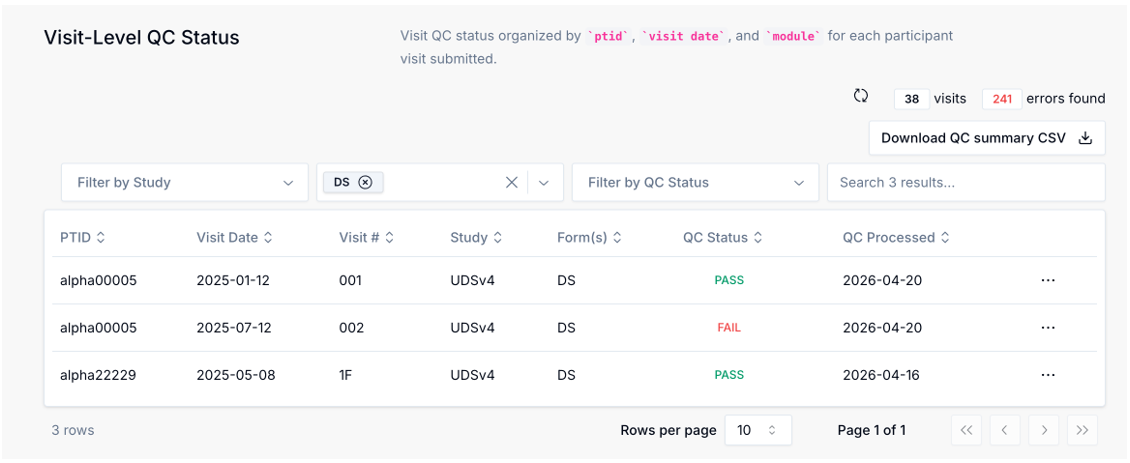
-
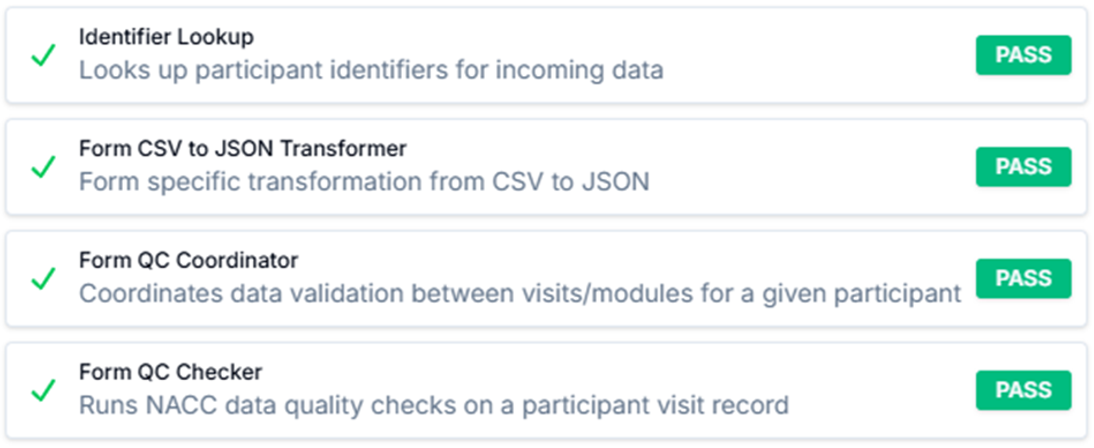
The interface will then display the QC Status, such as:
- Identifier Lookup: Retrieves participant identifiers for the incoming data.
- Form CSV to JSON Transformer: Converts the form data from CSV to JSON.
- Form QC Coordinator: Coordinates validation across visits/modules for a given participant.
- Form QC Checker: Runs NACC data quality checks on a participant’s visit record.
Viewing and using the Error Report
-
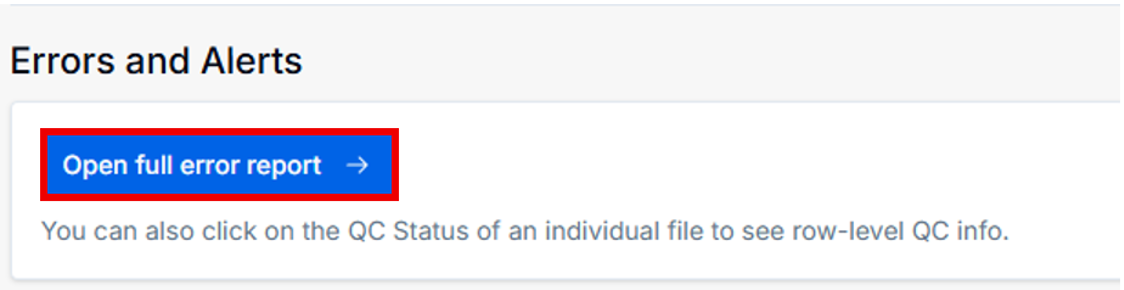
In the Errors and Alerts panel on the UDSv4 & Module Forms QC page, click the Open full error report button to open the full error report for the submission.
- This error report is scoped to UDSv4 modules (including the DS module stream).
-
Review errors listed in the report and correct your source data/CSV accordingly.
-
Re-upload the corrected CSV (ensuring the filename still ends with
-ds.csv).
The Portal also has other QC or error-report areas for other data streams (for example, UDSv4 pages). Those will show different error reports. Be sure you are using the UDSv4 Module QC page for UDSv4 DS Module submissions.
Direct Data Entry for Neuropathology (NACC-hosted REDCap Direct Entry)
Down Syndrome data can also be submitted through Direct Data Entry into NACC REDCap. Centers enter DS data directly into linked REDCap forms, which then flow through the same QC and ingestion pipelines.
From the UDSv4 Data Submission page:
-
Select Direct Data Entry into NACC REDCap.
-
Select the desired study or module (for example, Module: Down Syndrome (UDSv4)).
-
Click Go to REDCap.
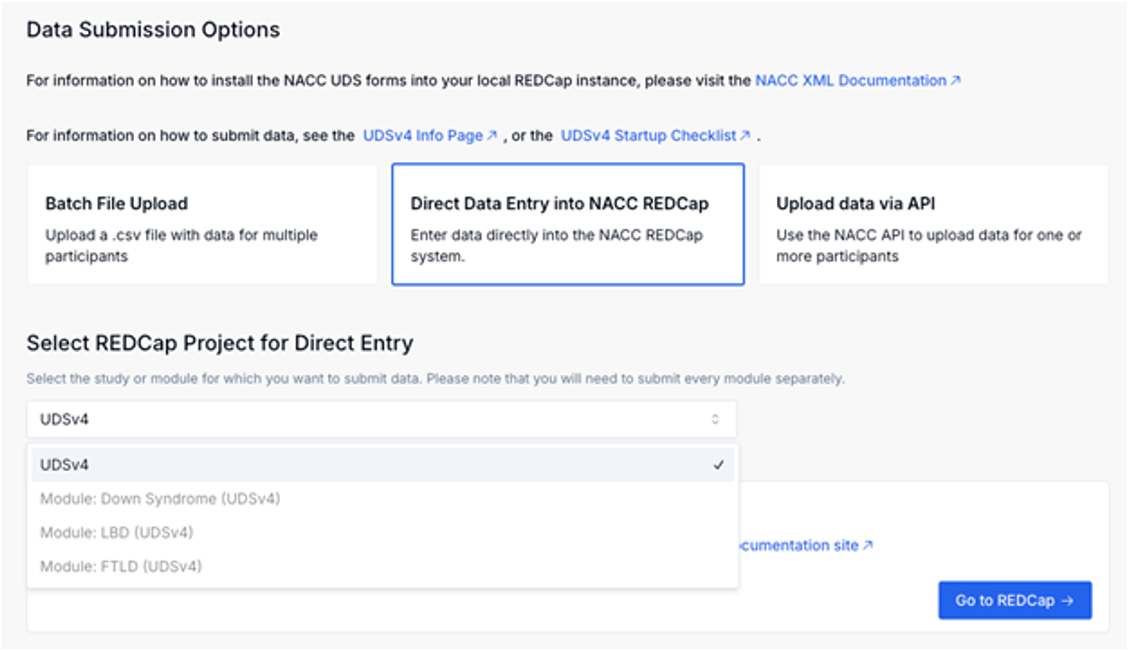
For details, see the NACC-hosted REDCap Direct Entry documentation.
Upload Data via API for Neuropathology (Programmatic Uploads)
Down Syndrome data can also be submitted through Upload data via API. Centers submit DS data via the NACC API, using the same underlying infrastructure and QC rules as batch file uploads.
Clicking Upload data via API will show a button that takes you to the Programmatic Uploads documentation.
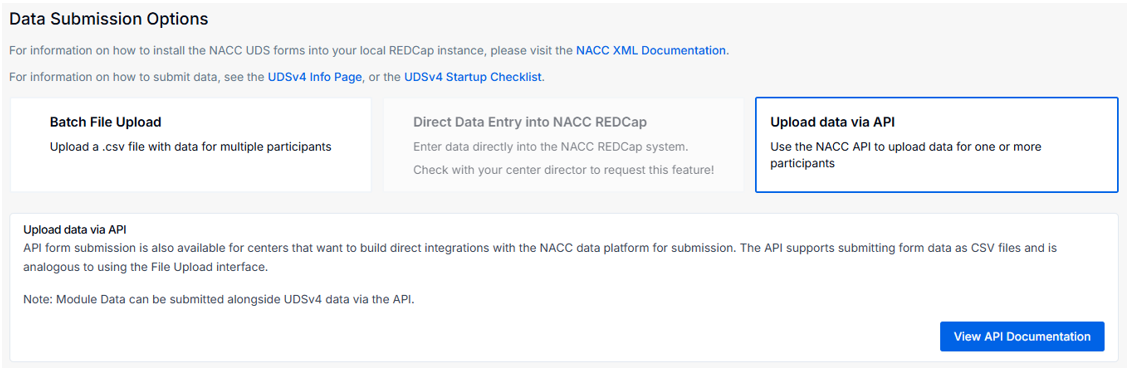
For details, see the Upload data programmatically documentation.
Troubleshooting (common issues)
- Upload blocked immediately: Confirm the filename ends with
-ds.csv. If it does not, the Portal will not allow upload. - Need to find UDSv4 specific QC results: Use the UDSv4 & Module Form QC page under View, Audit, & Access Data, not the UDSv3 QC pages.
- Errors in submission: Open the full error report, correct issues, and re-upload using the correct suffix.