NCRAD Analysis Sample Returns Upload and QC Process (NCRAD)
Introduction
This document describes the step-by-step process NCRAD uses to:
- Upload an Analysis Sample Returns (ADCFB) CSV to Flywheel
- Trigger the automated pipeline that splits files by center
- Perform manual validation (“QC”) using staging outputs (no automated testing is performed by NCRAD or NACC)
- Release the data to Alzheimer’s Disease Research Centers (ADRCs) by uploading a non-staging (production) file
- Understand what ADRCs see in the ADRC Portal (download experience)
Prerequisites
-
Flywheel account access
- NCRAD uploaders must have access to Flywheel.
- If access is needed, submit a Support Request for Flywheel access.
-
Correct Flywheel project access
- You must know which Ingest project to upload the Analysis Sample Returns data to (e.g., ‘ingest-biomarker’).
- You must know which corresponding Staging project to check outputs in (if using staging) (e.g., ‘staging-biomarker’).
-
Correct file naming
- The center-splitting “gear” is triggered by specific filenames (regex rules).
- Including “staging” in the filename routes outputs to staging for QC purposes (e.g., ‘ncrad-biomarker-ab40-adcfb-return-13-staging.csv’ or ‘ncrad-biomarker-ab40-adcfb-return-13-control-staging.csv’).
- Omitting “staging” from the filename routes outputs to center distribution projects (release). (e.g., ‘ncrad-biomarker-ab40-adcfb-return-13 .csv’ or ‘ncrad-biomarker-ab40-adcfb-return-13-control.csv’).
Naming Conventions
| Type | Analysis files | Control Files |
|---|---|---|
| (Release) | ncrad-biomarker-ab40-adcfb-return-13.csv | ncrad-biomarker-ab40-adcfb-return-13-control.csv |
| (Staging) | ncrad-biomarker-ab40-adcfb-return-13-staging.csv | ncrad-biomarker-ab40-adcfb-return-13-control-staging.csv |
Note: The exact required filenames may be finalized/maintained by NACC. If filenames change, the gear rules can be updated, but NCRAD must follow the current naming rules.
Key concepts (quick reference)
- Ingest project: Where NCRAD uploads a single CSV with data for all-centers.
- Staging project: Internal validation area; split files appear here by ADCID so NCRAD can verify before release.
- Distribution projects: Center-specific projects; outputs written here are visible to ADRCs (NCRAD may not be able to view all of them).
- ADCID: Center identifier used for splitting (one output file per center).
Recommended workflow (high level)
(1) Upload staging file →(2) Validate staging splits →(3) Upload release file (no “staging” in filename) →(4) ADRCs download via ADRC Portal
A. Upload to Staging (Validation Run)
Step A1 — Log in to Flywheel
- Log in to Flywheel.
- In the left sidebar, click Projects. Confirm you can see the NCRAD projects you have permission to access.
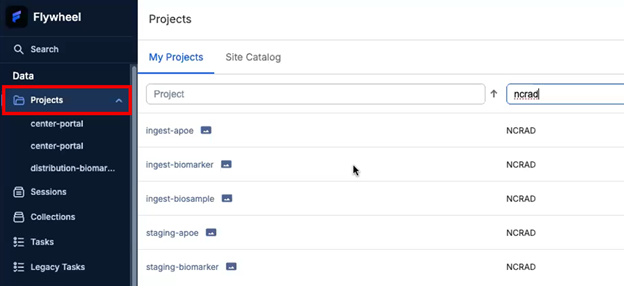
Step A2 — Open the correct Ingest project
- From the project list, open the Ingest project used for Analysis Sample Returns (e.g., ingest-biomarker).
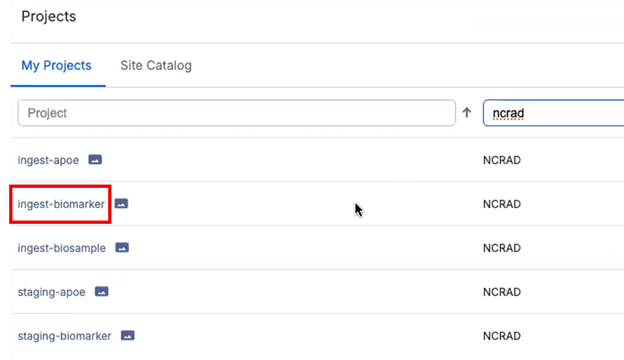
- In the project, select the Information tab (this is where uploads and attachments are managed).
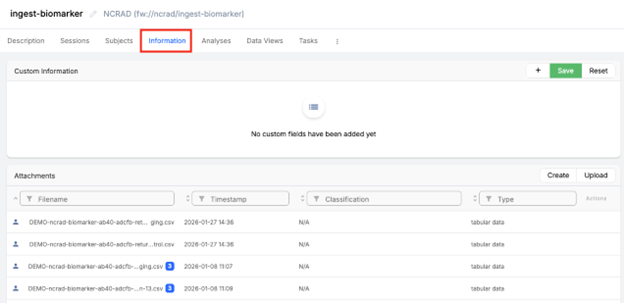
Step A3 - Upload the staging CSV
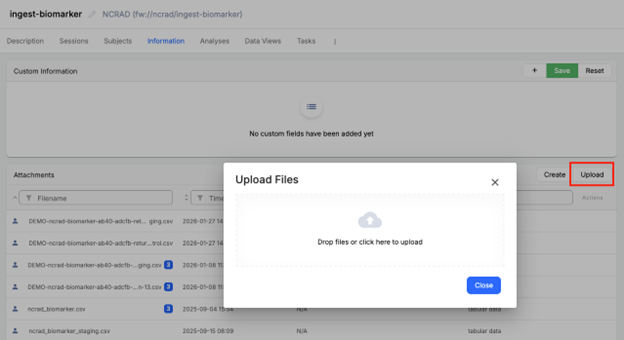
- In the Information tab, click Upload. The “Drop files or click here to upload” area will appear.
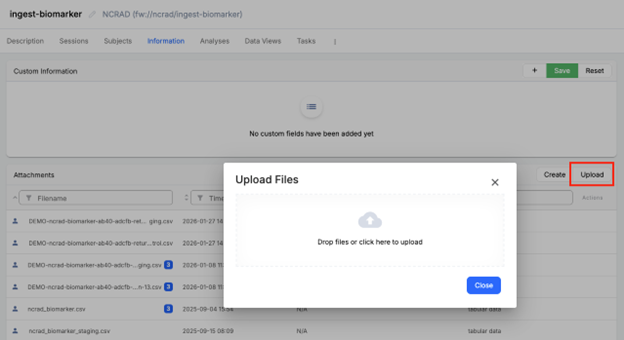
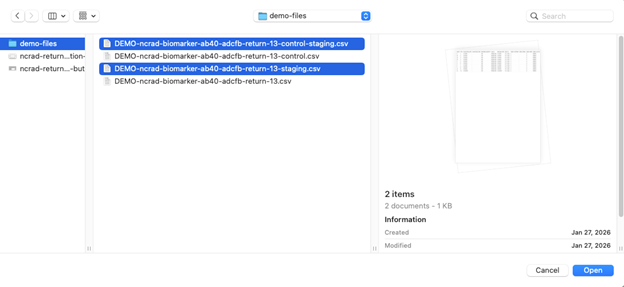
- Select the staging version of the Analysis Sample Returns file.
- Ensure the filename includes “staging” so the pipeline writes split outputs to the staging project (for example, ‘DEMO-ncrad-biomarker-ab40-adcfb-return-13-staging.csv’ or ‘DEMO-ncrad-biomarker-ab40-adcfb-return-13-control-staging.csv’).
What happens next
-
The upload completes quickly.
-
The upload triggers the CSV center splitter pipeline (a Flywheel gear) that splits the CSV into center-level files. Pipeline completion is not instant.
Step A4 — (Optional) Monitor the pipeline run in the Jobs log
- If you have access, open the project's Jobs Log.
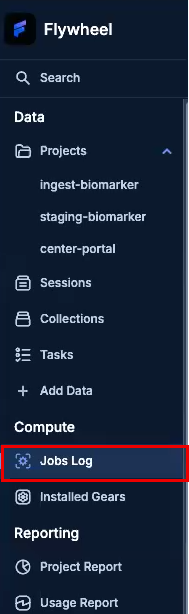
- Confirm a job starts for the CSV center splitter gear.

- Wait for completion (Pipeline completion is not instant):
- Typical: ~10 minutes
- Large uploads: up to ~1 hour
Note: There is not automatic “pipeline complete” notification. You may need to check the job status manually or look for outputs in the staging project.
Step A5 — Open the Staging project and verify outputs
- Navigate to the corresponding Staging project for Analysis Sample Returns (e.g., ‘staging-biomarker’).
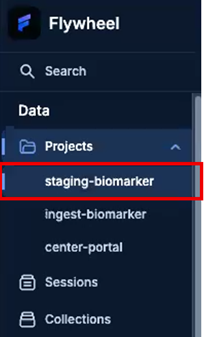
- Select the Information tab.
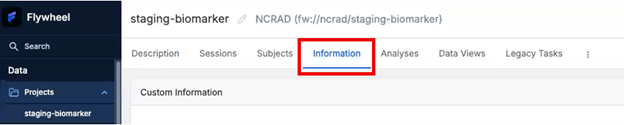
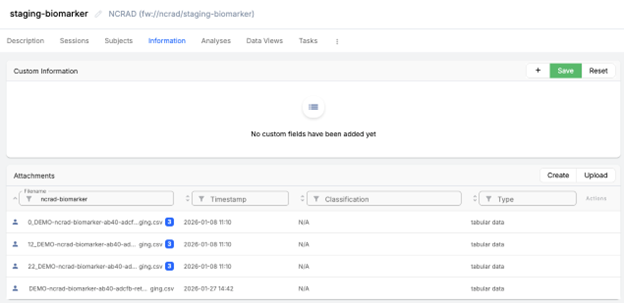
- Confirm that the pipeline produced split output CSVs (typically one per ADCID present in the upload). The ADCID will be prepended to the filename. If the file is also processed through the Identifiers API, the filename may also include the
_identifiers.csvsuffix. Note that the control file will not be split, as there’s no need to do so.
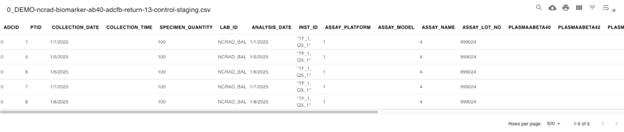
- Open one or more split files to validate contents.
What to check (manual validation/ “QC")
-
Each split file contains rows for only one ADCID (one center).
-
Records for the center look complete and reasonable.
-
If there is a “center of concern,” spot-check that center's file in particular.
B. Revise and Re-run Staging(If Issues Are Found)
Step B1—Revise the source CSV
- If you find an issue in the staging outputs, update the source CSV on your side (NCRAD side).
Step B2 — Re-upload the corrected staging file
- Return to the Ingest project (see Step A2).
- Upload the corrected file using a filename that still matches the staging naming rule (i.e., includes “staging”) (see Step A3).
Notes
- Many teams re-upload using the same filename (overwrite pattern) or a dated/round-labeled filename.
- The key requirement is that the filename matches the gear’s regex rule for staging.
C. Release to ADRCs (Production/Distribution Run)
Once you have reviewed the staging center splits and confirmed they look correct, you can release the file to ADRCs by uploading a version of the file without “staging” in the filename. This triggers the production gear rule and writes the split outputs to center distribution projects.
Step C1 — Prepare the release filename (remove “staging”)
- Confirm staging outputs are correct (see Step A5).
- Create a release version of the file by re-uploading a new file without “staging” in the filename.
- Files with “staging” in the name are routed to the staging project for validation.
- Files without “staging” in the name are routed to ADRCs.
Note: Gear rules are triggered by specific filenames (regex). If filenames change, the gear rules can be updated, but NCRAD must follow the currently required naming convention.
Step C2 — Upload the release file to the Ingest project
- In Flywheel, open the correct Ingest project for this data type (e.g., ‘ingest-biomarker’).
- Go to the Information tab.
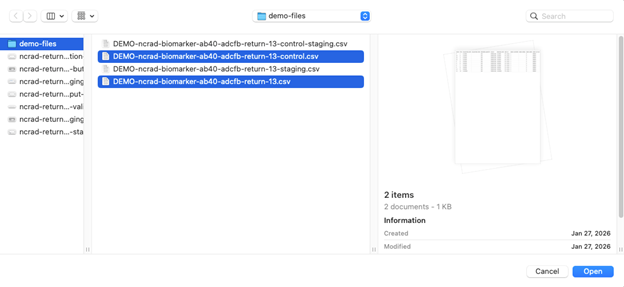
- Upload the release CSV (the filename does not include “staging”), for example, ‘DEMO-ncrad-biomarker-ab40-adcfb-return-13.csv’ or ‘DEMO-ncrad-biomarker-ab40-adcfb-return-13-control.csv’.
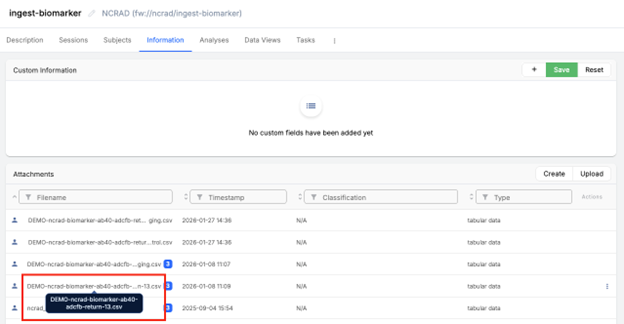
What happens next
- The pipeline runs the same splitting process, but instead of writing to staging, it writes outputs to each center’s distribution project.
- NCRAD may have limited visibility into distribution projects, because ADRCs typically only have access to their own projects.
D. What ADRCs See (ADRC Portal download view)
ADRCs typically access NCRAD-delivered files via the ADRC Portal, which presents downloads in a more user-friendly interface than Flywheel. For details, refer to the NCRAD Blood Biomarker Data documentation.
E. QC checklist (Staging validation)
Use this checklist before releasing:
- Expected split files exist (one per ADCID present in the upload)
- No cross-center leakage (each split contains only that ADCID)
- Spot-check priority centers (if any are known to be sensitive)
- Ready to release (no “bad samples” present)
Troubleshooting / Support
Submit a Support Request to NACC if:
- You cannot access Flywheel projects
- Upload does not trigger the pipeline (likely filename mismatch with regex rules)
- Outputs do not appear after sufficient time
- Center splits appear incorrect