APOE Data Upload Process (NCRAD)
Introduction
This document outlines the step-by-step process NCRAD uses to:
- Upload an APOE data CSV to Flywheel
- Trigger the automated pipeline that splits files by center
- Perform manual validation (“QC”) using staging outputs (no automated testing is performed by NCRAD or NACC)
- Release the data to Alzheimer’s Disease Research Centers (ADRCs) by uploading a non-staging (production) file
- Understand what ADRCs see in the ADRC Portal, including the download experience
Prerequisites
-
Flywheel account access
- NCRAD uploaders must have access to Flywheel.
- If access is needed, submit a Support Request for Flywheel access.
-
Correct Flywheel project access
- You must know which Ingest project to upload APOE data to (e.g., ingest-apoe).
- You must know which corresponding Staging project to use to review outputs (e.g., staging-apoe) when running in staging.
-
Correct file naming
- The center-splitting “gear” is triggered by specific filenames (regex rules).
- Including “staging” in the filename routes outputs to staging for QC purposes (e.g., ncrad-apoe-staging-YYYY-MM-DD.csv).
- Omitting “staging” from the filename routes outputs to center distribution projects (release). (e.g., ncrad-apoe-YYYY-MM-DD.csv).
Note: The exact required filenames may be finalized/maintained by NACC. If filenames change, the gear rules can be updated, but NCRAD must follow the current naming rules.
Key concepts (quick reference)
- Ingest project: The Flywheel project where NCRAD uploads a single CSV with data for all centers. At minimum requires ADCID and PTID headers in the file.
- Staging project: Internal validation area; split files appear here by ADCID so NCRAD can verify before release.
- Distribution projects: Center-specific projects; outputs written here are visible to ADRCs (NCRAD may not be able to view all of them).
- ADCID: Center identifier used for splitting (one output file per center).
Recommended workflow (high level)
(1) Upload staging file →(2) Validate staging splits →(3) Upload release file (no “staging” in filename) →(4) ADRCs download via ADRC Portal
A. Upload to Staging (Validation Run)
Step A1 — Log in to Flywheel
- Log in to Flywheel.
- In the left sidebar, click Projects. Confirm that you can see the NCRAD projects you have permission to access.
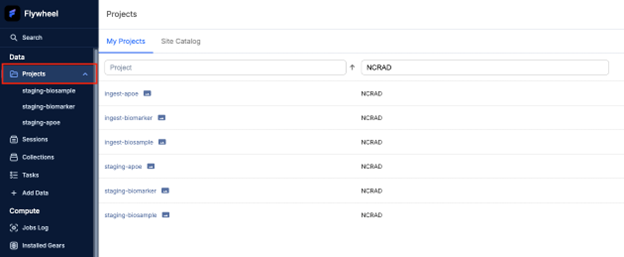
Step A2 — Open the correct Ingest project
- From the project list, open the Ingest project used for APOE data (e.g., ingest-apoe).
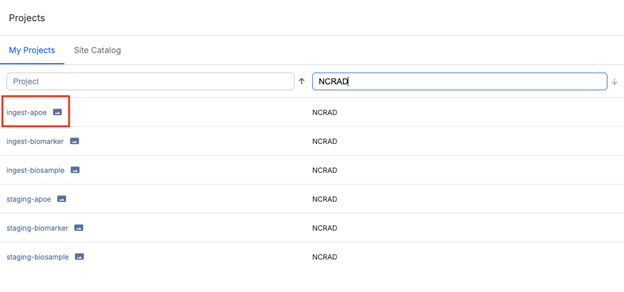
- In the project, select the Information tab (this is where uploads and attachments are managed).
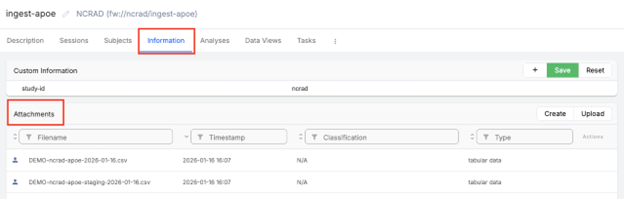
Step A3 — Upload the staging CSV
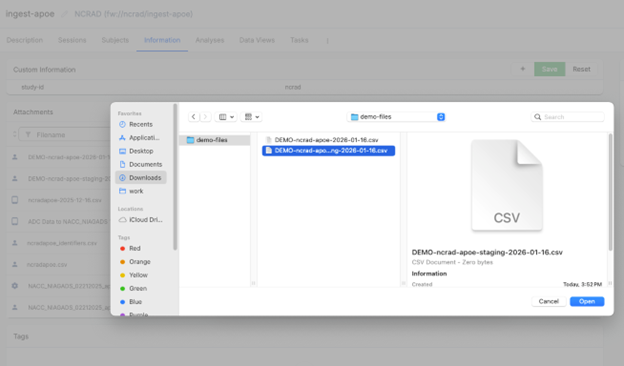
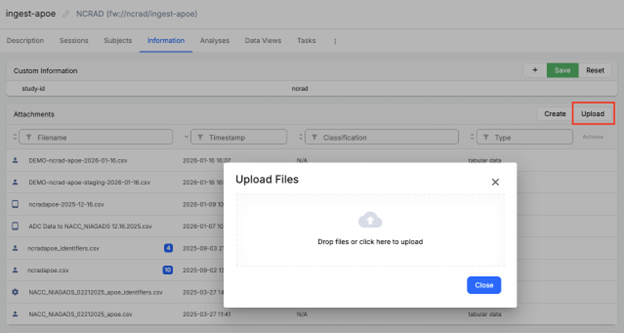
- In the Information tab, under Attachments, click Upload. The “Drop files or click here to upload" dialog will appear.
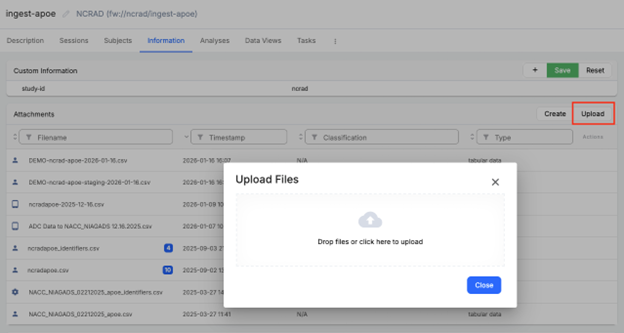
- Select the staging version of the APOE data file.
- Ensure the filename includes “staging” so the pipeline writes split outputs to the staging project (e.g. *ncrad-apoe-staging-2026-01-16.csv).
What happens next
-
The upload completes quickly. If overwriting a file, it may ask you to confirm first.
-
The upload triggers the CSV center splitter pipeline (a Flywheel gear) that splits the CSV into center-level files.
-
Center-level files are written to the Staging project (e.g. staging-apoe) for validation.
Step A4 — (Optional) Monitor the pipeline run in the Jobs log
- If you have access, open the project's Jobs Log.
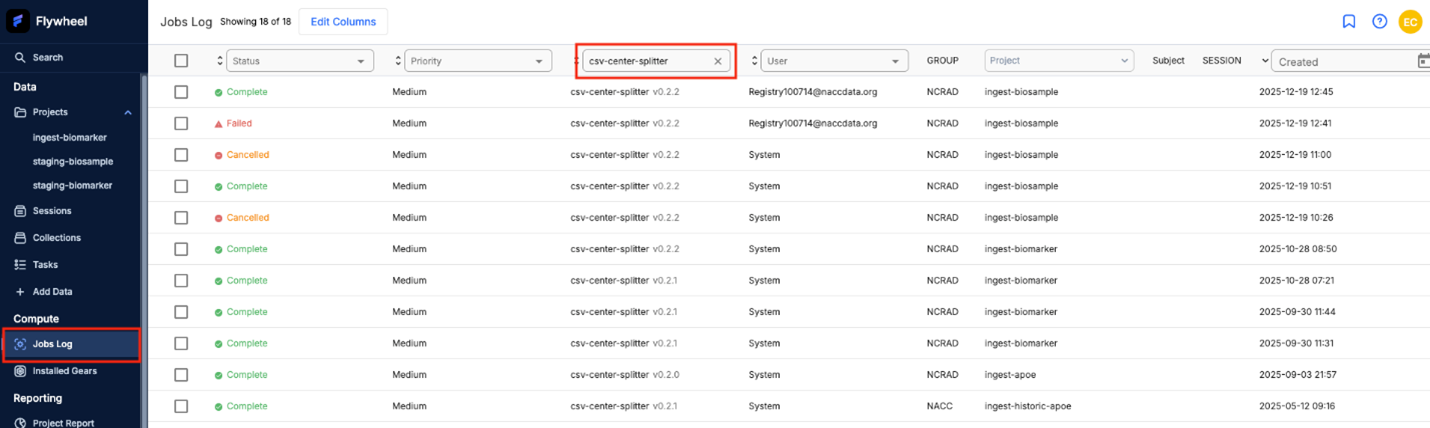
- Confirm a job starts for the CSV center splitter gear.

- Wait for completion. This step typically takes around 10 minutes.
Note: There is no automatic “pipeline complete” notification. You may need to check the job status manually or confirm completion by locating the outputs in the Staging project.
Step A5 — Open the Staging project and verify outputs
- Navigate to the corresponding Staging project for APOE data (e.g., staging-apoe).
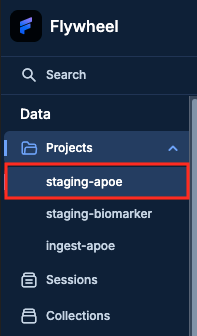
- Select the Information tab.

- The ADCID is prepended to the original filename for the corresponding split.
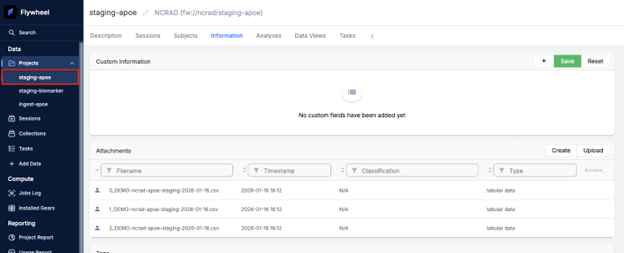
- Open one or more split files to validate contents.

What to check (manual validation / “QC”)
- Each split file contains rows for only one ADCID (one center).
- Records for the center look complete and reasonable.
- If there is a “center of concern,” spot-check that center’s file in particular.
B. Revise and Re-run Staging (If Issues Are Found)
Step B1 — Revise the source CSV
- If you find an issue in the staging outputs, update the source CSV on your side (NCRAD side).
Step B2 — Re-upload the corrected staging file
- Return to the Ingest project (see Step A2).
- Upload the corrected file using a filename that still matches the staging naming rule (i.e., includes “staging”) (see Step A3).
Notes
- Many teams re-upload using the same filename (overwrite pattern) or a dated/round-labeled filename.
- The key requirement is that the filename matches the gear’s regex rule for staging.
C. Release to ADRCs (Production/Distribution Run)
Once you have reviewed the staging center splits and confirmed they look correct, you can release the file to ADRCs by uploading a version of the file without “staging” in the filename. This triggers the production gear rule and writes the split outputs to center distribution projects.
Step C1 — Prepare the release filename (remove “staging”)
-
Confirm staging outputs are correct (see Step A5).
-
Create a release version of the file by removing “staging” from the filename.
-
Files with “staging" in the name are routed to the staging project for validation.
-
Files without “staging” in the name are routed to ADRCs.
-

Note: Gear rules are triggered by specific filenames (regex). If filenames change, the gear rules can be updated, but NCRAD must follow the currently required naming convention.
Step C2 — Upload the release file to the Ingest project
- In Flywheel, open the correct Ingest project for this data type (e.g., ingest-apoe).
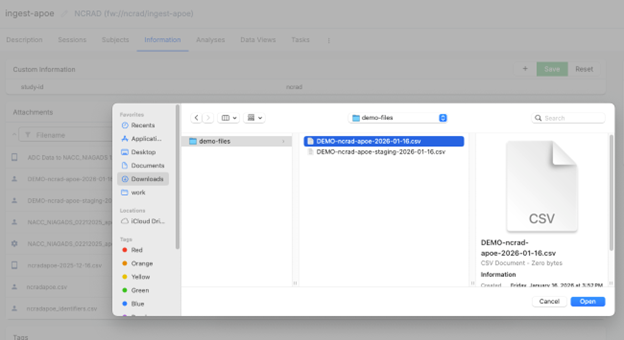
- Go to the Information tab.
- Upload the release CSV (the filename does not include “staging"), for example, DEMO-ncrad-apoe-2026-01-16.csv.
What happens next
- The pipeline runs the same splitting process, but instead of writing to staging, it writes outputs to each center’s distribution project.
- Once the center-specific files land in the center’s distribution project, it triggers the Identifier Lookup pipeline which looks up the NACCID for each ADCID/PTID combination.
- Subjects that are successfully linked to a NACCID are written to a new file in the center’s distribution project with an “_identifiers” suffix appended (e.g. 0_ncrad-apoe-YYYY-MM-DD_identifiers.csv).
- Centers can then compare this with the original split file to determine which of their samples do not have a corresponding NACCID.
- NCRAD may have limited visibility into distribution projects, because ADRCs typically only have access to their own projects.
D. What ADRCs See (ADRC Portal download view)
ADRCs typically access NCRAD-delivered files via the ADRC Portal, which presents downloads in a more user-friendly interface than Flywheel. For details, refer to the NCRAD APOE Data Download (for ADRCs) documentation.
E. QC checklist (Staging validation)
Use this checklist before releasing:
- Expected split files exist (one per ADCID present in the upload)
- No cross-center leakage (each split contains only that ADCID)
- Spot-check priority centers (if any are known to be sensitive)
- Ready to release (no “bad samples” present)
Troubleshooting / Support
Contact NACC operations/engineering support if:
- You cannot access Flywheel projects
- Upload does not trigger the pipeline (likely filename mismatch with regex rules)
- Outputs do not appear after sufficient time
- Center splits appear incorrect