Piping
Relevance to UDSv4
The Piping feature in REDCap allows data to be entered in one place in the database and carried over to another place in the database.
Implementation for UDS4 FVP
Piping is utilized for reference across redundant fields throughout forms for a visit and to add context to other fields for better data capture. Once the question is answered for the Initial Visit Packet (IVP), piping can display the previously entered value for reference in a Follow-Up Visit Packet (FVP).
Form and project resources, including the XML, data dictionaries, and zip files for UDSv4 come with piping already provided for specific variables that were approved for piping by the Clinical Task Force (CTF).
Resources
This page explains piping: REDCap Piping Feature Guide
This video provides an additional explanation of piping:
This interactive survey demonstrates piping: REDCap Piping Demo
To find information within REDCap about piping, look for the purple 'Piping' button on the Project Setup page:
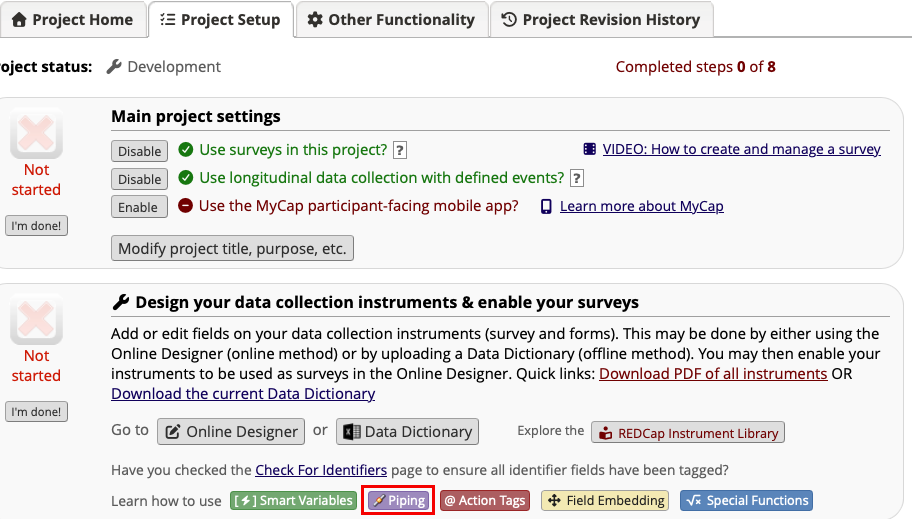
You can also find the purple Piping button on the instrument page in Online Designer or directly below the variable name in a field while editing a field.
Step-By-Step Guide
Introduction
The below examples are based on the structure of the UDSv4 project, in which UDSv4 forms are in a repeating event. With that setup, a follow-up visit is considered a new 'instance'. Piping therefore references 'instances'.
Example: providing a previous value for reference
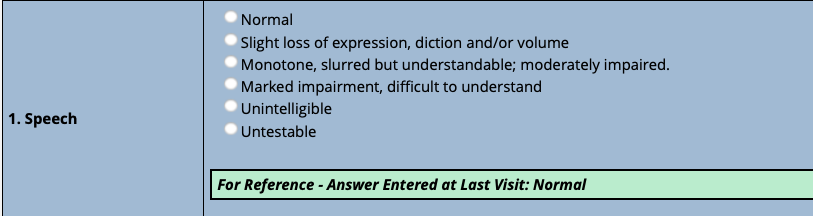
In the below image, which is a question in Form B3 for a follow-up visit, you'll note a green box that contains the answer that was entered for this question at a previous visit. The data entry person can take that information as a cue and then enter a value into the answer box that can either match the previous value if there are no changes or enter a new value if there is new information on the participant.
How-to: Provide a value for reference within the field label
To provide a value for reference, place piping in the field label.
Standardized template for piped information in UDSv4
For UDSv4, we standardized how piping information appears on the data entry form. Here are the steps for creating the standardized template:
-
Create a descriptive text field
- This is the field the will contain the piped information
-
For the variable name, prepend the variable name you are piping (source field) with
loc_and append it with_lastvis- If you are piping speech, the variable that pipes in the previous value would be
loc_speech_lastvis
- If you are piping speech, the variable that pipes in the previous value would be
-
Enable the rich text editor
-
Insert a table with 1 cell*
-
Apply a light green background
-
Add this template text within the cell: For Reference - Answer Entered at Previous Visit:
-
Enter the piping statement
- For the speech field, it would be
[udsvisit_arm_1][speech:hideunderscore][previous-instance]
- For the speech field, it would be
-
Apply branching logic to the field so that it only displays if there is a previous value
- For the speech field, it would be
[packet]='F' AND [pdnormal] <> '1' AND [udsvisit_arm_1][speech][previous-instance]<>''
- For the speech field, it would be
-
Embed the field within the field label of the source field.
- For the speech field, it would be
{loc_speech_lastvis}
- For the speech field, it would be
Source Code template for UDSv4
*After enabling the rich text editor in the descriptive text field, you can click on the source code icon:

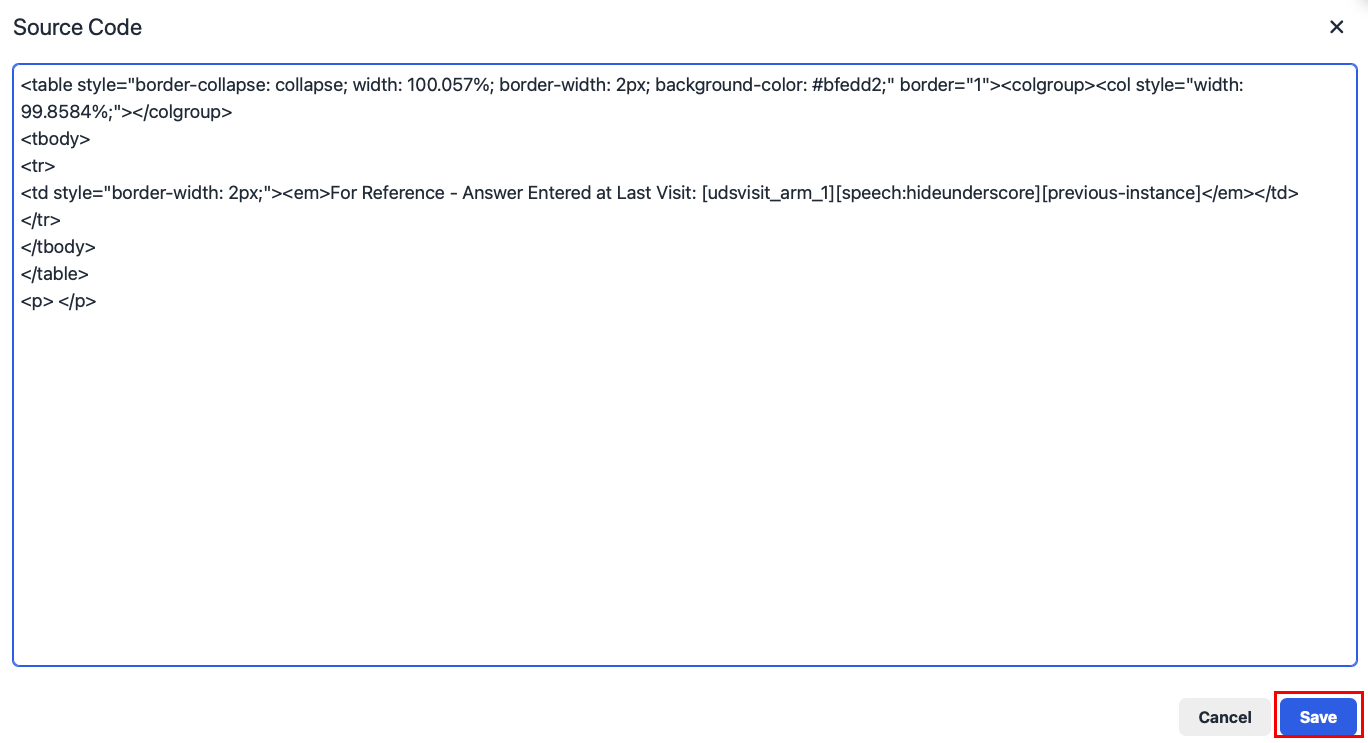
And then paste this into the source code box:
<table style="border-collapse: collapse; width: 100.057%; border-width: 2px; background-color: #bfedd2;" border="1"><colgroup><col style="width: 99.8584%;"></colgroup>
<tbody>
<tr>
<td style="border-width: 2px;">
<p>For Reference - Answer Entered at Previous Visit: [udsvisit_arm_1][variablename:hideunderscore][previous-instance]</p>
</td>
</tr>
</tbody>
</table>
<p> </p>
Replace the text 'variablename' with the variable you are piping.
Click the save button for the Source Code page:
Video tutorial
Click here to watch a video that shows you how to create the descriptive text field that contains piped information:
Designer view of field containing piped information
Field with piped information:

Designer view of field with embedded piped information

Difference between first instance and subsequent instances
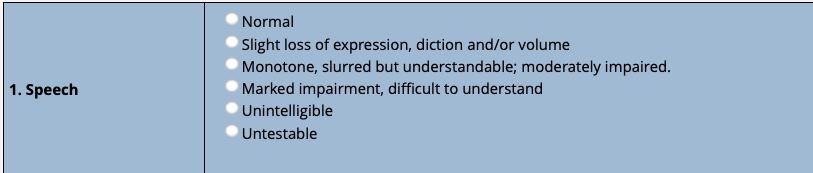
Note that for an Initial Visit Packet (the first instance), the piped statement about Speech does not show up in the question on data entry form page:
However, for FVP the piped data displays in the question:
Caveats/Things to know
To pipe in values from a different event, use the smart variable for event, instead of instance.
For piping to work properly, the Form Header instrument must be filled out completely and saved, with the choice 'Follow-up Visit Packet' selected for Packet Code:
