Neuropathology (NP) Data Download Guide – ADRC Portal
Introduction
Alzheimer’s Disease Research Centers (ADRCs) can access and download Neuropathology (NP) data submitted to the National Alzheimer’s Coordinating Center (NACC) through the ADRC Portal.
There are two ways to view and download NP data:
- Accessing project wide NP data downloads through the audit interface
- Viewing NP data within the participant-level forms interface, alongside other modules (e.g., UDS and retrospective forms)
This guide explains how to access and download NP data using both methods.
Method 1: Downloading NP Data for an Entire Center
This method allows ADRCs to download all NP submissions for their center using the audit interface. This approach is useful when performing:
- Data quality review
- Center wide data exports
- Programmatic data analysis
Step-by-step guide
Step 1: Open the Audit Interface
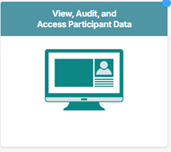
From the ADRC Portal homepage, click View, Audit, and Access Participant Data.
Step 2: Open the UDS Data Export Page
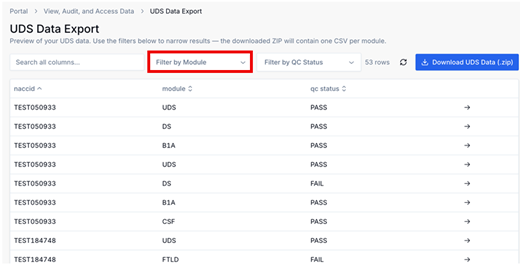
Select the tile for the UDS Data Export interface (name may vary slightly depending on the final release). This page displays all form submissions across the center, including retrospective modules such as NP.

Step 3: Filter for NP Modules
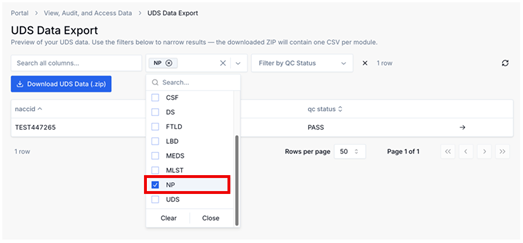
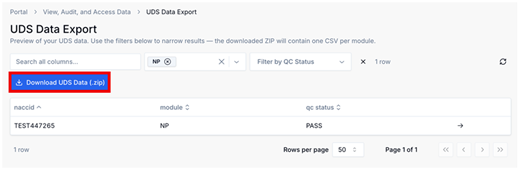
Within the module submissions interface, locate the Filter by Module. Select NP (Neuropathology) to display only NP submissions. This view shows a table containing NP submissions for your center.
Step 4: Review NP Submission Records
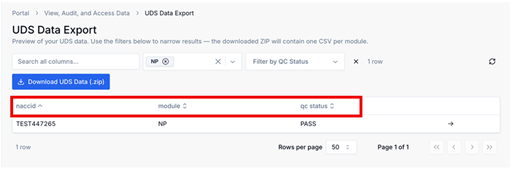
The filtered table lists NP submissions and may include fields such as:
- NACCID
- Module name
- QC status
Users can apply additional filters if needed (for example, filtering only records that failed QC).
Step 5: Download the NP Dataset
To export the displayed NP records, click the Download UDS Data (.zip) button. This will download a zip file containing the currently visible rows, including any active filters.
Method 2: Viewing and Downloading NP Data for Individual Participants
This method allows users to review NP data associated with a specific participant visit. The NP module appears in the participant’s list of submitted forms alongside other modules.
Step-by-step guide
Step 1: Open the Participant Data Page
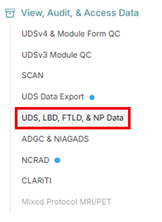
From the top level of the ADRC Portal, click UDS, LBD, FTLD, & NP Data in the sidebar.
Step 2: Locate a Participant
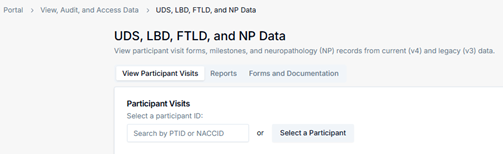
Navigate to the participant search interface and locate the participant whose data you want to review. You can locate participants by:
- Searching by Participant ID (PTID) or NACCID
- Using available search filters
Step 3: Select the Participant
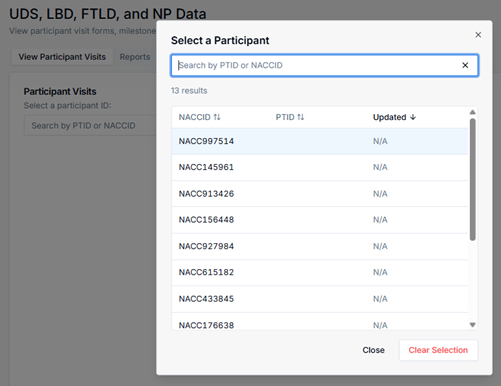
Select the participant or type to search for a participant from the results list to open their participant record.
Step 4: View Milestones and Visits
After selecting a participant, the Participant Summary Page will appear. This page displays participant information and all associated visits and modules. Within the Milestones and Visits section, you will see all submitted modules for that participant, including the Neuropathology (NP) module if NP data has been submitted.
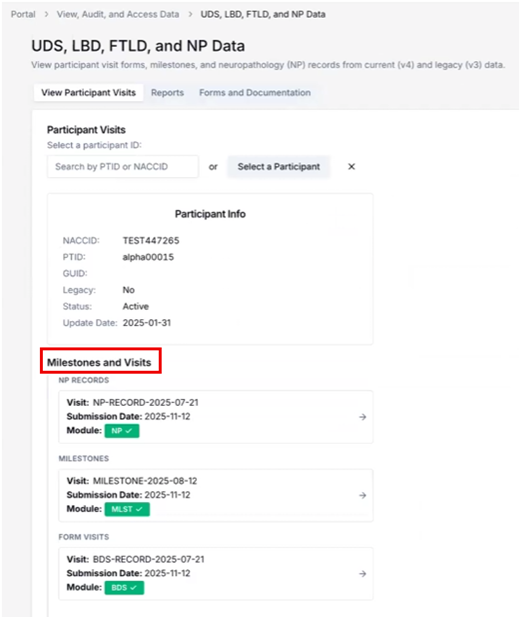
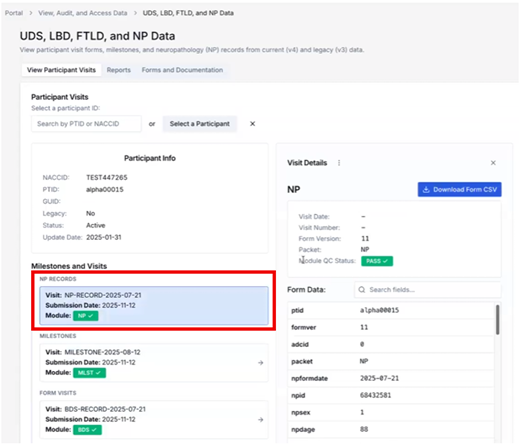
Step 5: Open the NP Module
Select the NP module associated with the visit. The module page displays:
- The QC status of the submission
- The submission date
- All raw data fields from the uploaded NP file
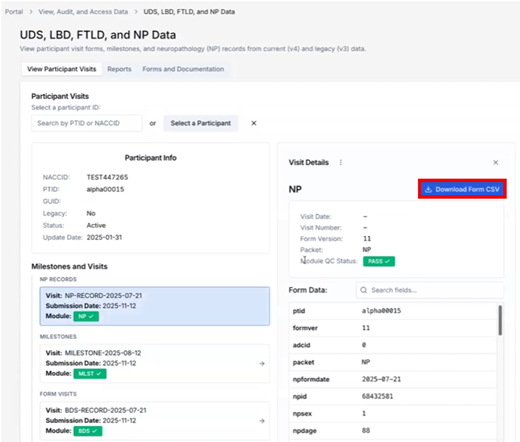
Step 6: Download NP Data
To download the NP data for this visit, click the Download Form CSV button. This downloads the NP module data for that participant visit as a CSV file.
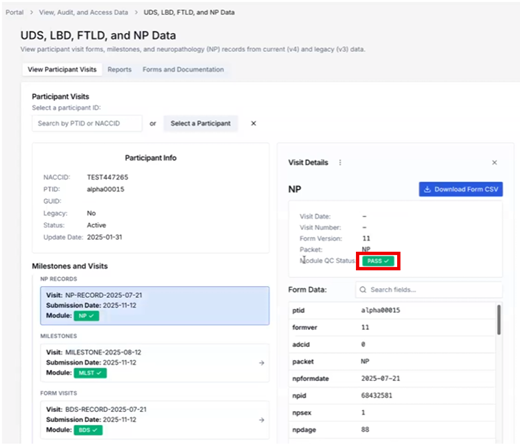
Step 7: Review QC Status (Optional)
Each module submission displays a QC status indicator. The QC status helps determine whether the submission passed or failed automated data checks. Typical indicators include:
- PASS – The submission passed QC validation
- FAIL – The submission failed QC validation and may require review
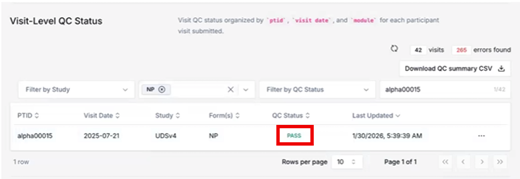
Users can open the QC details page to review validation results and identify issues if a submission fails QC. To do this, click on the Module QC status (e.g., PASS), as shown in the screenshot below.
Then, in the Visit-Level QC Status panel, you can review the QC status for each participant (PTID) and each record in the submitted files. For example, click PASS in the QC Status column.
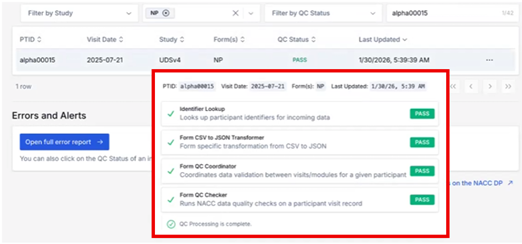
The interface will then display the QC Status, such as:
- Identifier Lookup: Retrieves participant identifiers for the incoming data.
- Form CSV to JSON Transformer: Converts the form data from CSV to JSON.
- Form QC Coordinator: Coordinates validation across visits/modules for a given participant.
- Form QC Checker: Runs NACC data quality checks on a participant’s visit record.
Summary of NP Data Access Options
Audit / Module Forms Interface (Method 1)
Used when downloading all NP submissions for a center, or when performing data quality review.
Participant View (Method 2)
Used when reviewing or downloading NP data for a specific participant visit.
Both options provide flexible access depending on whether you need center-wide NP datasets or targeted participant-level data.