UDSv4 Data Download
Introduction
Alzheimer’s Disease Research Centers (ADRCs) can download UDSv4 data that has been submitted to NACC via the ADRC Portal.
This includes:
- Visit-level data for individual participants, and
- Full UDSv4 datasets for all participants at a center.
This page describes how to access and download UDSv4 data from the ADRC Portal.
Accessing the UDSv4 Data Download Page
From the top level of the ADRC Portal, click the tile labeled View, Audit, and Access Participant Data.
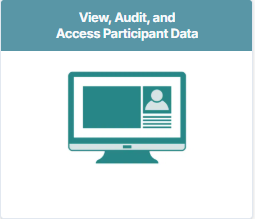
This will open the page where you can:
- Review and download participant-level data
- Monitor submission status
- Download UDS datasets for your center
There are two ways to view and download UDSv4 data:
- Accessing project wide UDSv4 data downloads through the audit interface
- Viewing UDSv4 data within the participant-level forms interface.
This guide explains how to access and download UDSv4 data using both methods.
Method 1: Downloading Individual Participant Visit Data
If you need visit-level data for specific participants (for example, to review or troubleshoot a single record), you can download data from the UDS, LBD, FTLD, & NP Data page.
Step-by-step guide
-
From the View, Audit, and Access Data page, select the tile labeled UDS, LBD, FTLD, & NP Data.
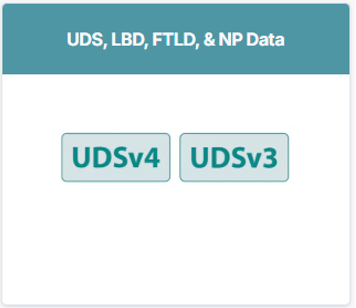
-
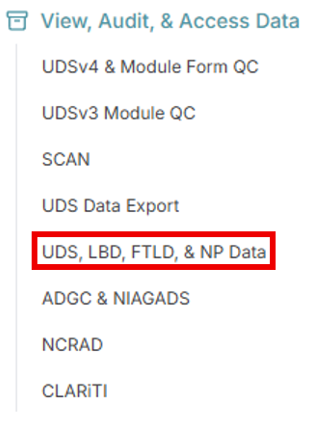
Alternatively, from the top level of the ADRC Portal, click UDS, LBD, FTLD, & NP Data under the View, Audit, & Access Data section in the sidebar.
-
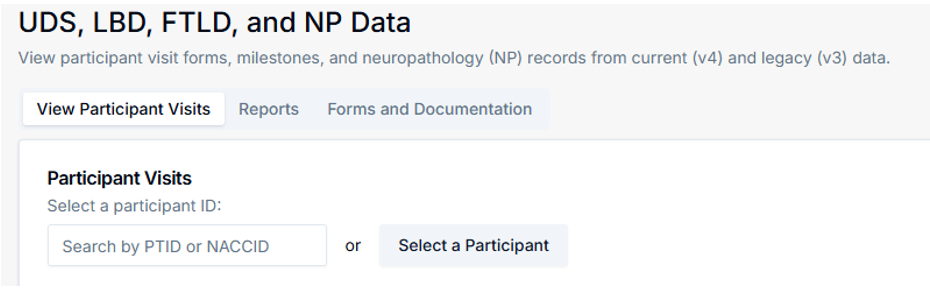
Use the search interface to locate participants:
- Search by participant ID if you know the exact ID.
- Filter using available search fields as needed.
-
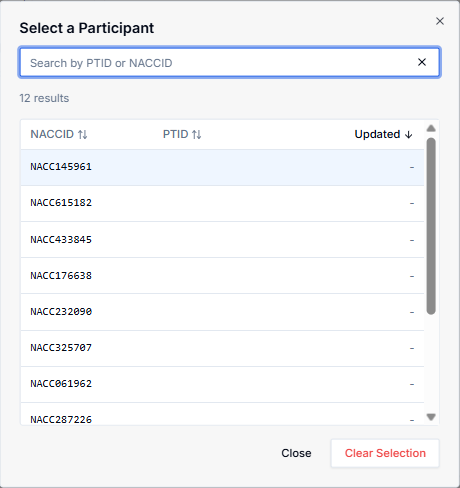
Select the participant or type to search for a participant from the results list to open their participant record.
-
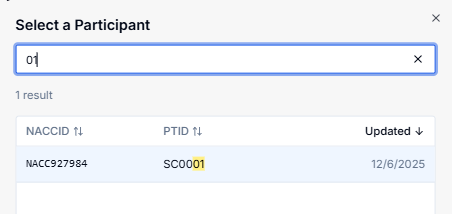
Select the participant whose data you would like to download.
-
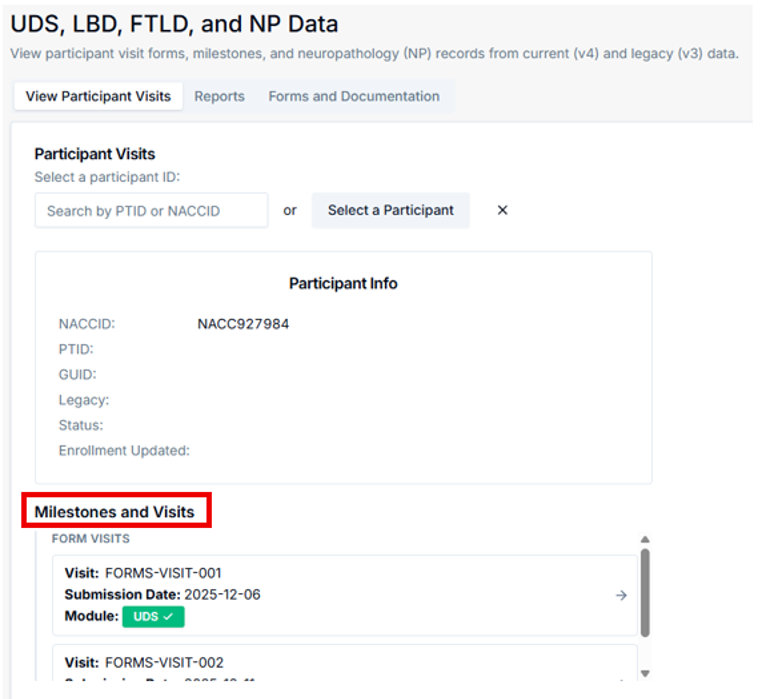
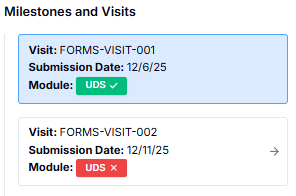
After selecting the participant, a summary page is displayed. Please note that it may take a few minutes for the data to load. This page displays participant information and all associated visits and modules. Within the Milestones and Visits section, you will see all submitted modules for that participant.
-
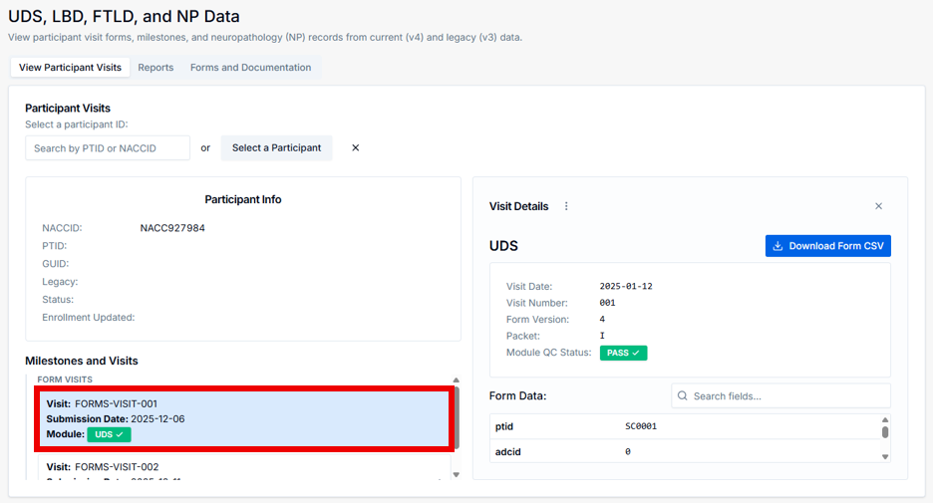
Select the module (e.g., UDS) associated with the visit. The module page displays:
- The QC status of the submission
- The submission date
- All raw data fields from the uploaded file
-
From this page, click Download Form CSV to download the UDSv4 data.

Monitor submission status
In the Milestones and Visits section, each visit displays a Submission Date and a Module label. The color-coded module badge provides a quick status indicator:
- Green (e.g., “UDS ✓”): the submission has passed QC.
- Red (e.g., “UDS ×”): the submission failed QC and requires attention.
If a submission fails QC, select the item to open the QC details page, where you can see where it failed and resolve the reported errors.
Please note that it may take a few minutes for the visits and their statuses to load, as the system performs database lookups for each visit.
This option is intended for targeted retrieval of individual visit records, rather than full center-wide data exports.
Method 2: Downloading a Full UDSv4 Dataset
If you need all UDSv4 visit data for your center, use the UDS Data Export interface.
Step-by-step guide
-
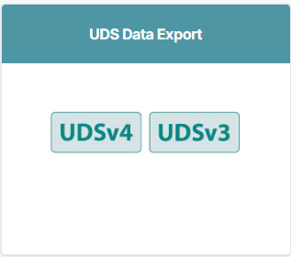
From the View, Audit, and Access Data page, click the tile labeled UDS Data Export.
-
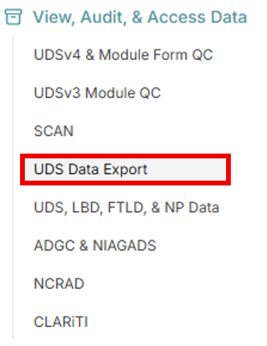
Alternatively, from the top level of the ADRC Portal, click UDS Data Export under the View, Audit, & Access Data section in the sidebar.
-
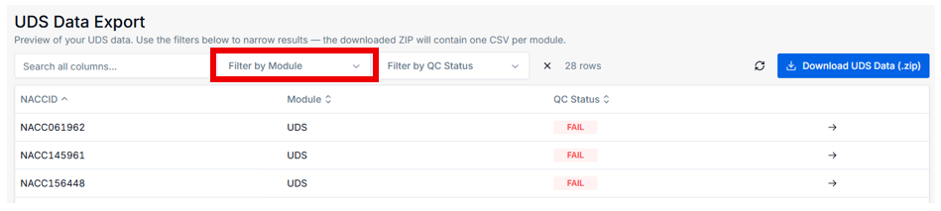
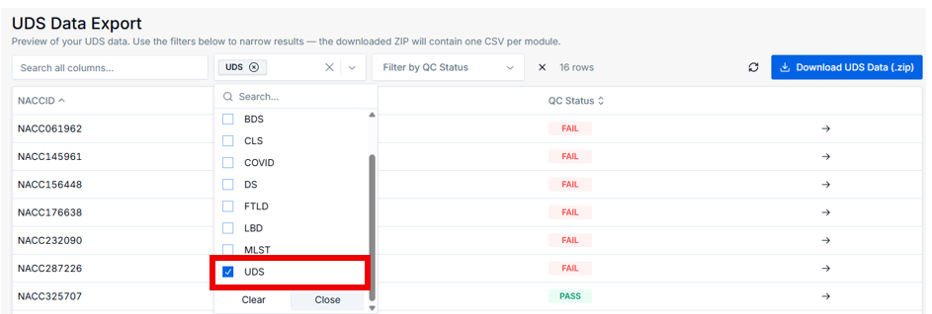
Within the module submissions interface, locate the Filter by Module. For example, select UDS to display only UDS submissions. This view shows a table containing UDS submissions for your center.
-
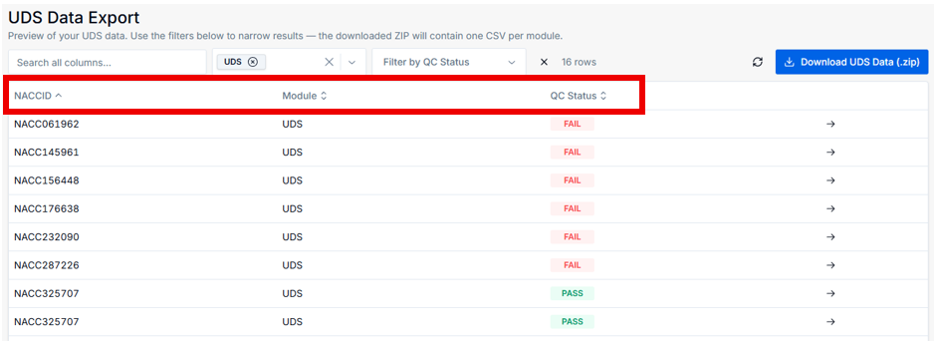
The filtered table lists all submissions (e.g., UDS) and may include fields such as:
- NACCID
- Module name
- QC status
Users can apply additional filters if needed (for example, filtering only records that failed QC).
-
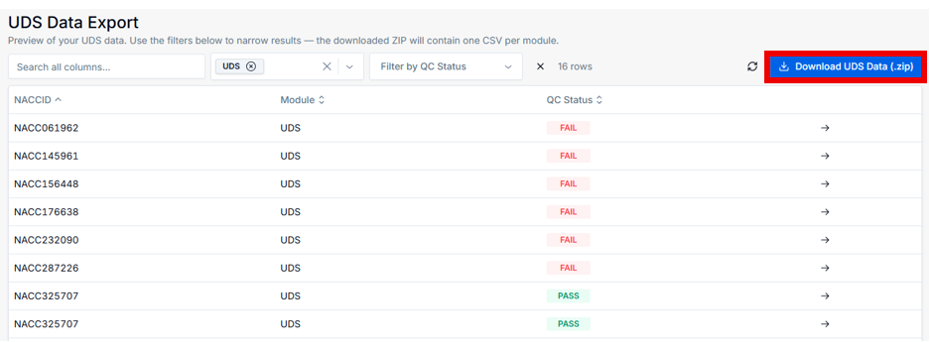
To export the displayed records, click the Download UDS Data (.zip) button. This will download a zip file containing the currently visible rows, including any active filters.
-
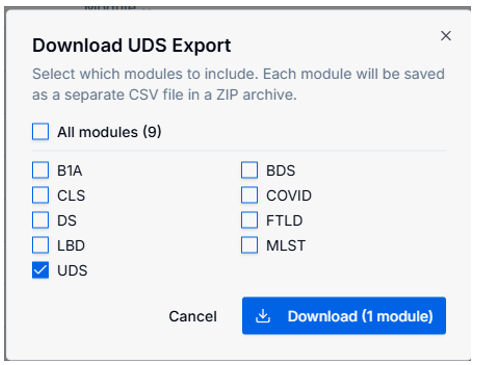
After selecting the Download UDS Data (.zip) button, a summary page is displayed showing:
- The total number of modules included (for example, 1 module if you only select UDS).
-
From this page, click Download (1 module) to download the UDSv4 data (for example, 1 module if you only select UDS).
Summary of UDSv4 data download options
- Use UDS, LBD, FTLD, and NP Data when you need individual participant visit data (for troubleshooting, validation, or review of specific records).
- Use UDS Data Export when you need a complete UDSv4 dataset for your center (for center-wide analyses or data quality checks).
If you have questions, please contact the NACC team.